Adult coloring
Watercolor Coloring Pages for Adults: Soft Blends in ColorDood
ColorDood’s Watercolor tool lays down soft, blurred dots that suggest a gentle wash. This guide covers which pages suit it, how to layer color with Smudge, and why it is a digital effect rather than real watercolor paint.
Updated November 24, 2026 · 7 min read
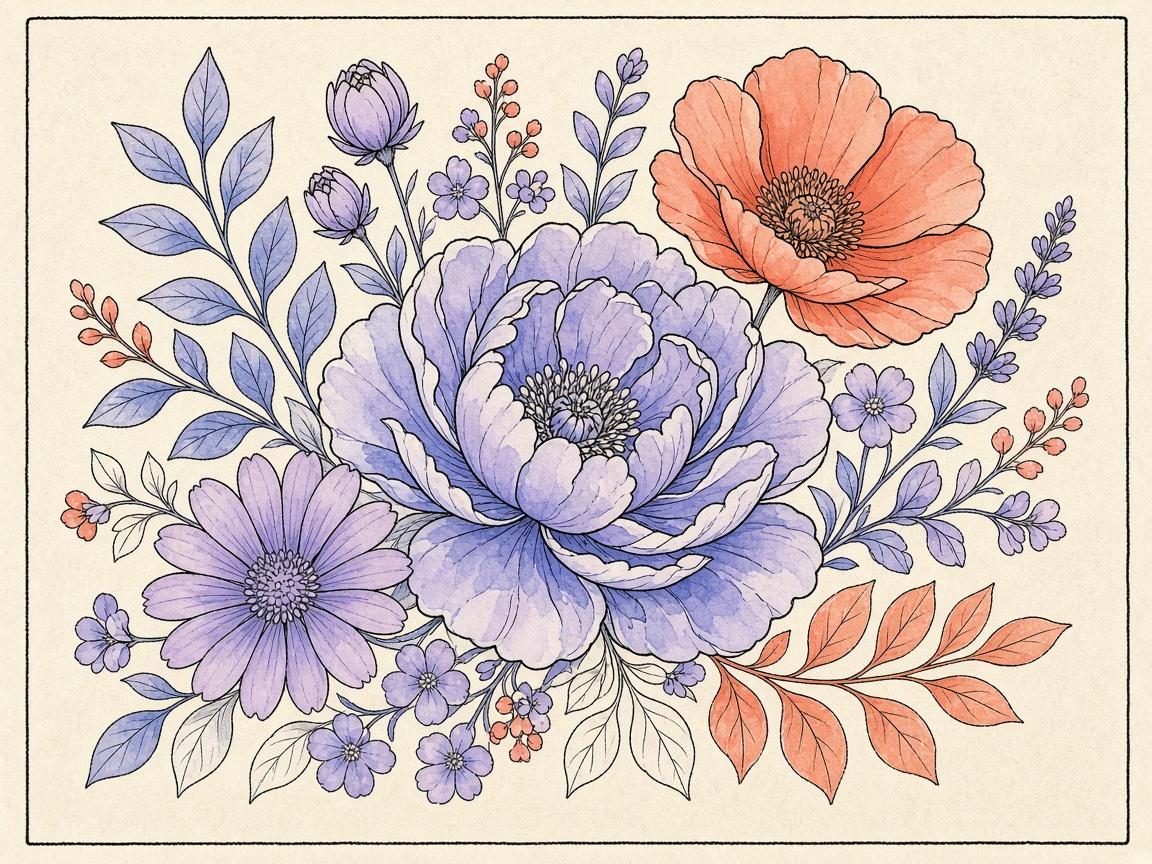
To color watercolor-style pages for adults in ColorDood, pick a page with large, open shapes such as flowers, leaves, or botanical sprays, then use the Watercolor tool to lay down soft, blurred dots of color. The Smudge tool can soften the edges and mix colors. The result is a gentle, layered look that many colorers enjoy.
This guide explains how the Watercolor tool looks on the canvas, which pages suit it, how to layer and blend with Smudge, and which palettes to try. It also says plainly what Watercolor in ColorDood is not. It is a digital brush effect, not real watercolor paint.
What the Watercolor tool looks like
The Watercolor tool is one of eleven tools in the tool dock. Instead of a solid line, it lays down soft, blurred dots. Where you go over an area more than once, the color builds up and looks deeper. Where you touch lightly, the color is pale and airy. That build-up is the main reason the tool feels like a wash.
Brush size runs from 4 to 60. A larger brush covers a wide area with soft color quickly. A smaller brush gives you more control near the edges of a petal or a leaf. Try a few sizes on a scrap area before you commit to a full page.
Which pages suit watercolor
Watercolor works best where the soft edges have room to sit. Large floral pages are a good match, with open petals and wide leaves. Botanical pages with simple branches and broad foliage also suit it. Simple objects with generous areas, such as a teapot, a fruit bowl, or a single vase, can look lovely in soft tones.
Very dense pages can look muddy with a soft brush. When many small areas sit close together, the blurred dots can run into one another. If you want to try watercolor on a dense page, use a small brush and keep the boundary on Inside so the color stays in each shape.
A flower or botanical page is a natural place to start. Use the Plants & Fruit category to browse, or search by a flower name to find a page with the open shapes you want.
Layering and blending with Smudge
Watercolor is at its best when you build color in layers. Start with a light first layer across the whole shape. Let that layer sit, then add a second layer in the areas that need depth, such as the center of a flower or the shadow side of a leaf.
Smudge blurs color and mixes it where your finger moves. It is useful for softening a hard edge between two colors, or for blending one color gently into the next. Use Smudge lightly. If you press too long, the color can lose its shape, and the page can look flat. Undo a heavy smudge and try a shorter stroke.
If you are coloring a page with several petals or leaves, work on one shape at a time. Finish its first layer, check it, and then move on. Going around the page in small steps keeps the color even, and it is easier to undo one shape than to fix the whole page.
- Pick a large, open page and zoom to a comfortable view
- Choose a soft palette and select the Watercolor tool
- Lay down a light first layer across one shape
- Add a second, deeper layer in just one part of the shape
- Use Smudge lightly along the edge where two colors meet
- Zoom out and check the balance before you move on
Palette choices for soft color
ColorDood has ten palette styles, and some suit a soft look better than others. Pastel is a natural choice, since its gentler colors sit comfortably together under a soft brush. Ocean is another good pick for a calm, cool wash on leaves or water-like backgrounds.
Change a palette with the Palette button in the tool dock, or from Settings > Change palette. Each palette has about 40 solid swatches, lights and darks rows, eight gradients, and a rainbow swatch. Start with a few light tones and add a darker one only where you want more depth. The custom color wheel in the tool dock lets you fine-tune a tone if the palette is close but not quite right.
Use undo as a test
Watercolor is easy to test. Undo and redo go back up to 12 steps and sit in the canvas header. Try a color, a brush size, or a layer on a small part of the page. If it looks right, keep going. If it looks heavy or muddy, undo it.
A test stroke in a corner of the page works well. Many colorers find it easier to choose a palette and a brush size once they have seen a few strokes side by side.
Watercolor also rewards patience. Because the soft layers build up, the page can look finished sooner than you expect or later than you hoped. Step back, zoom out, and look at the whole page before you add another layer. If the page already has the depth you want, stop there. A lighter result is often more pleasant than one that has been worked too hard.
What watercolor in ColorDood is not
The Watercolor tool is a digital effect. It paints soft, blurred dots, and it can look like a wash on the screen. It does not simulate real paper, water, pigment drying, or the way paint bleeds across fibers. If you want the feel of traditional watercolor paint, you will need real paints and paper.
The tool is also not a substitute for a lesson in watercolor technique. If you want to learn painting skills, look for a course or a book on that subject. ColorDood is for coloring pages, and it makes no claims about learning outcomes.
A checklist for your first watercolor page
- Choose a large, open page, such as a floral or botanical design
- Pick a soft palette such as Pastel or Ocean
- Select the Watercolor tool and try two or three brush sizes on a corner
- Lay down one light layer across each shape
- Add depth in one or two areas with a second layer
- Blend edges lightly with Smudge
- Use undo whenever a layer looks heavy
- Leave the canvas to save your work to the gallery
What this guide does not cover
This guide does not cover real watercolor techniques, paper choices, or printed watercolor books. It also does not list every palette color or every gradient preset in detail. For those, check the palette options inside the app, where the current swatches are shown.
Coloring is a hobby. This guide is about how a digital tool looks and behaves. It does not make claims about relaxation, health, or wellbeing, and it does not promise any particular result.
Frequently asked questions
What does the Watercolor tool do in ColorDood?
It paints soft, blurred dots of color. The result has a gentle, diffuse look that suggests a wash. It is a digital effect and does not behave like real watercolor paint.
Which coloring pages work best with Watercolor?
Large floral and botanical pages tend to suit it, because the soft edges sit well inside open shapes. Simple objects with generous areas also work. Very tight, dense pages can look muddy.
How do I blend Watercolor colors?
Lay down a light layer first, then use the Smudge tool to blur and mix the edges. Keep your strokes light, and check the result before adding another layer.
Can I undo a watercolor test?
Yes. Undo and redo go back up to 12 steps and sit in the canvas header. Test a color or a layer on a small area, then undo if you do not like it.
Ready to play a free coloring game?
Download ColorDood — free AI adult coloring book and coloring game with 1000+ pages, 11 tools, calming sounds, and no login required.