Product guide
ColorDood Brush Tools Guide: All 11 Tools and When to Use Them
ColorDood has 11 tools in the canvas dock, from Fill and Brush to Watercolor, Glitter, and Eraser. This guide explains what each one does and when it helps.
Updated November 8, 2026 · 8 min read
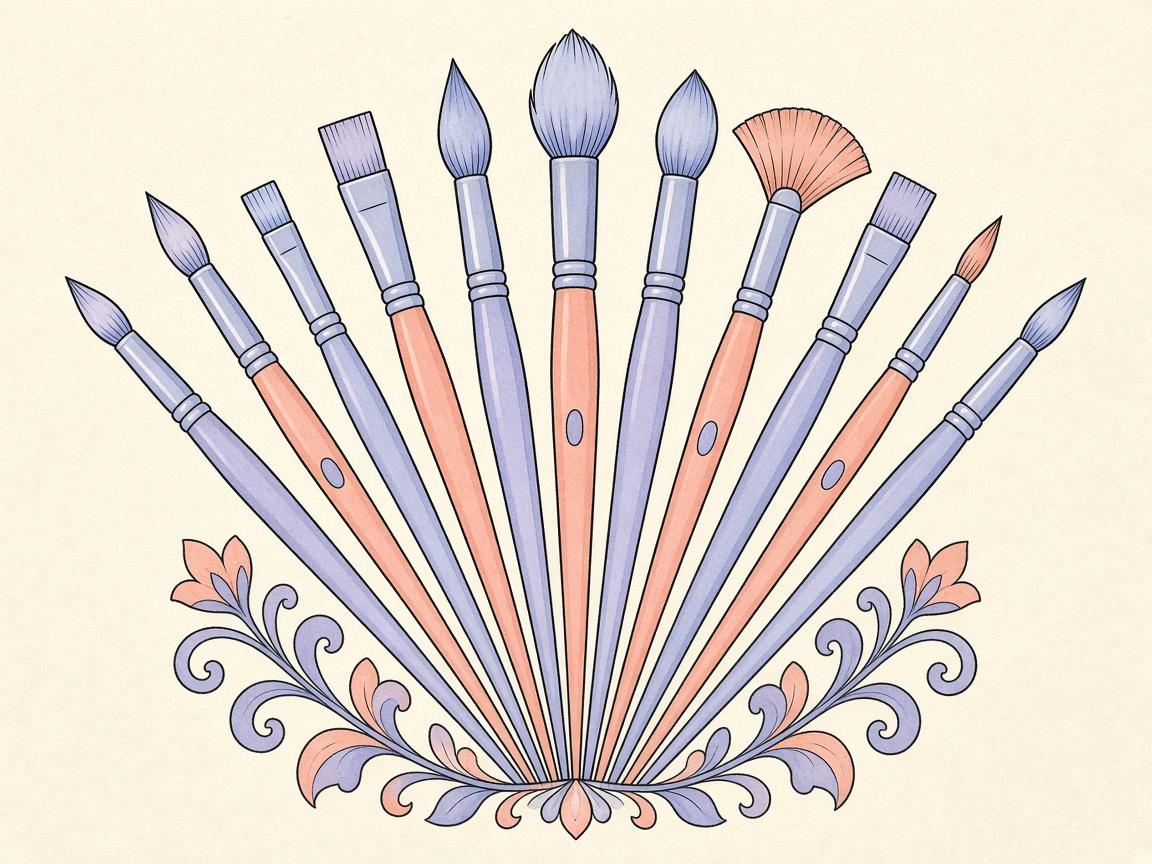
ColorDood has 11 tools in the canvas dock. Each one paints in a different way, so the best choice depends on the area you want to color. This guide goes through each tool, explains what it really does, and gives one simple use for it.
The short answer is this: **Fill** colors big areas, **Brush** handles strokes, and the other tools add texture, glow, or softness. You can learn the basics in one session and add the rest as you go.
The 11 tools at a glance
Here is what each tool does on the canvas. Descriptions are short, so you can check them against your own page.
- **Fill**: Tap an enclosed region to fill the whole area with the current color. Use it for large shapes like petals, leaves, and walls.
- **Brush**: A standard stroke. The size slider runs from 4 to 60. Use it for outlines, edges, and details.
- **Pencil**: Paints with a grainy texture. Use it for shading or a sketchy look.
- **Marker**: Semi-transparent, with a multiply blend. Layers get darker where they overlap. Use it to build depth in a flower or a sky.
- **Watercolor**: Soft, blurred dots that build up gently. Use it for backgrounds and loose washes.
- **Neon**: Layered glow. Use it for a bright, lit-up accent on a single shape.
- **Glitter**: Adds colored flecks. Use it for small highlights, such as stars or jewelry.
- **Spray**: Airbrush-style dots. Use it to soften a color into a wider area.
- **Smudge**: Blurs the color already on the canvas. Use it to blend two neighboring shades.
- **Eraser**: Paints white. It does not remove strokes to a transparent layer. Use it to correct a small area, or use undo for a recent mistake.
- **Eyedropper**: Samples a color from the canvas, then switches you back to Brush. Use it to reuse a shade you already placed.
Dock order and the basics you need first
Fill is first in the tool dock and Brush is second. The rest follow in the dock, so check the order on your screen. You can change the color from the Palette button or from the color wheel for a custom shade.
The brush size slider runs from 4 to 60. A small size is good for thin lines and small shapes. A large size is good for backgrounds. If you are not sure, start around the middle of the range and adjust as you go.
The boundary toggle is also in the dock. **Inside** is the default and clips strokes to the enclosed shape where your touch starts. **Free** lets you paint anywhere. Fill always fills the full enclosed region on tap, in either mode. The setting stays saved, so you do not need to change it each time. For a fuller explanation, see our guide on Inside and Free boundary modes.
Which tool for which job
A useful way to pick a tool is to ask what the area needs. Large flat area: Fill. Edge or outline: Brush at a small size. Soft transition: Smudge or Spray. Layered depth: Marker. Glow or sparkle: Neon or Glitter. Mistake: undo first, then Eraser for a small patch.
You do not need every tool on every page. Many finished pages use only Fill, Brush, and one or two texture tools.
A combination for a floral page
Pick a flower page with several petals and a simple background. Start with the Pastel palette. Use Fill on each petal so the base colors are even. Then switch to Marker and go over the petal edges to add a darker tone where petals overlap. Multiply blending makes this look natural.
For the background, use Watercolor with a large brush. Keep the strokes loose and light. If a stroke goes past the petals, leave it. Free mode is useful for a background wash that spans the whole page. Switch back to Inside for the petal details.
Use the Eyedropper to pick a petal color again when you add a shadow. This keeps your shades consistent. Finish with a light pass of Smudge where the petal meets the background, but use it sparingly.
A combination for a geometric page
Pick a geometric or mandala page. Choose the Jewel palette, which gives deeper shades that read well on fine lines. Use Fill for each large segment, one color per shape. Keep Inside mode on so the fill stays where it belongs.
For thin lines and small accents, set the brush size low, near the bottom of the 4 to 60 range. Stay in Inside mode so the strokes do not cross outlines. Add a few Glitter flecks to the center only if you like a sparkle effect. Use Eraser for a small patch if a color goes past a line, or undo if the mistake is recent.
Practical tips for every session
- Zoom in with a two-finger pinch when you need detail. The zoom goes from 1x to 6x.
- Use the plus and minus buttons for steady zoom steps, then tap Fit screen to see the whole page.
- Test a color on a small area before you fill a large one.
- Use undo for recent changes. The canvas keeps up to 12 steps.
- Leave the canvas when you are finished. Your page is saved to the Gallery.
Common mistakes and quick fixes
- Color spills past a line: check that boundary mode is Inside, then try again with a smaller brush.
- Fill covers more than expected: undo once, then zoom in to check whether the outline has a gap.
- Colors look flat: add a Marker layer over the first fill, or try a gradient from the palette.
- The page looks muddy: use Smudge lightly, or undo and switch to a lighter shade.
- The Eraser left a white patch: it paints white, so undo if the mistake is recent.
If a fix does not work, zoom in, check the boundary toggle, and try the same step on a small area first. Small tests save time, and they help you learn how each tool responds on your device.
What this guide does not cover
This guide describes what the tools do on the canvas. It does not promise a specific artistic result, and it does not teach drawing or color theory in depth. Results depend on your device, your pace, and the page you choose.
This is also not medical advice. Coloring is a leisure activity, and ColorDood does not make claims about health or learning outcomes. Check the tools in your own version of the app, because the exact dock layout can change over time.
Frequently asked questions
Which tool should I try first?
Start with Fill for large areas and Brush for edges. Fill is first in the dock and Brush is second. Once those feel natural, try Marker or Watercolor for softer layers.
What is the difference between Eraser and Undo?
Eraser paints white over color. It does not remove the stroke. Undo steps back through your recent actions, up to 12 steps. For a mistake you just made, undo is usually the cleaner choice.
Does Smudge change the outline?
Smudge blurs the color that is already on the canvas. It is meant for softening edges and blending. Use it lightly, since heavy smudging can make a page look muddy.
Can I change the brush size for every tool?
The brush size slider runs from 4 to 60. Check the dock on your screen to see which tools use the size setting in your version.
Ready to play a free coloring game?
Download ColorDood — free AI adult coloring book and coloring game with 1000+ pages, 11 tools, calming sounds, and no login required.