
App guides
Tap Color Game Guide for Beginners: Start Coloring Fast
A tap color game fills areas with one touch. This beginner guide shows how to pick a page, fill it with ColorDood's Fill tool, and add detail as you go.
Updated November 17, 2026 · 8 min read · 965 words
A tap color game lets you color by tapping instead of drawing careful lines, and ColorDood gives you that experience through its Fill tool. Tap inside any closed outline and the whole region takes your chosen color in one move. ColorDood is a free coloring app for iPhone, iPad, and Android, built on freehand coloring rather than color-by-number, so there are no numbered cells to match. You pick the colors yourself and tap to fill. This beginner guide shows how to choose a page, fill your first areas, and use the other tools once you want more detail.
What is a tap color game?
A tap color game is any coloring game where a tap places color for you. Instead of coloring by hand stroke by stroke, you select a color, tap a space, and that space fills in. It is a simple way to make a page look complete in a few moves, which is why beginners often start here. In ColorDood, the Fill tool works this way: one tap fills a fully closed area with the color you picked.
It helps to know the difference between tap-to-fill and color-by-number. A color-by-number game shows numbers in each space and tells you which color to use. ColorDood does not do that. It gives you pre-drawn outlines and 11 tools, and you decide what goes where. The Fill tool still lets you tap to color, so you get the same quick result without following a numbered map. The guide at /blog/color-tap-fill-coloring-game explains that difference in fuller detail if you want to read more.
How to fill your first page
Starting is simple, and the steps below assume you have ColorDood installed from the App Store or Google Play. You do not need an account and the app has no ads. The Library at /coloring-pages groups pages into calm categories such as patterns, flowers, food, homes, and vehicles, so pick a page with a few large areas for your first try. For a fuller walkthrough of tap-to-paint, the guide at /blog/color-fill-game-tap-to-paint goes further.
- Open ColorDood and go to the Library, or swipe through Discover to find a page you like.
- Choose a page with large, closed shapes — fewer tiny spaces mean faster, cleaner fills.
- Pick a color from a palette, then select the Fill tool from the toolbar.
- Tap inside a closed area. Fill colors the whole region in one move; if color spreads past the lines, the area was not fully closed, so use undo and try again.
- Repeat with other colors until the main areas are filled.
- Switch to Brush, Pencil, or Marker to add small details once the base colors are down.
- Leave the canvas when you are done. ColorDood saves your work to the on-device gallery automatically, so you can return to the page later.
Tap fill or brush coloring?
Fill is the fastest way to cover area, but it is not the only tool you will use. Fill works best on big, closed regions where one tap can do the job of many strokes. It is less useful for fine lines, small details, or shading, where a Brush, Pencil, Marker, or Watercolor tool gives you more control. Most pages look best with a mix: fill the large areas first, then add detail with a finer tool.
That mix is why ColorDood offers 11 tools rather than only a fill bucket. You can start a page with quick taps, then slow down with Watercolor or Neon if you want texture. The comparison at /blog/color-tap-game-vs-brush-coloring looks at when each approach fits. Export options are available too: save an image, print a PDF, or record a timelapse. See /features for the full tool list, or /free-pdfs if you want paper pages to try first.
ColorDood is free to download, and the free tier gives you 250+ pages and core tools including Fill. If you want the full library of 4,500+ pages, 50+ palettes, and PDF and HD exports, Premium is $4.99 per month or $49.99 per year, with final prices varying by region. The /pricing page has the current details, so you can compare what is included before you decide.
Free line art
Pages you can print from this guide
Every thumbnail is a real page from the ColorDood library. Open one to download the PNG or print a PDF — no signup.
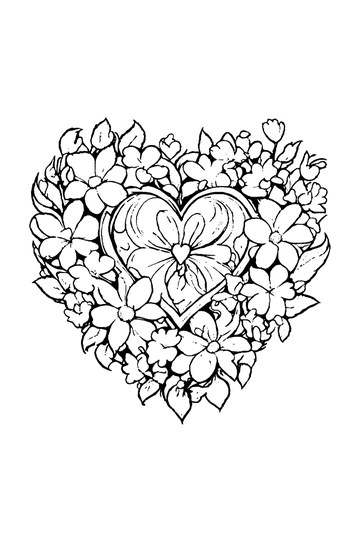
Adult Coloring Page: Heart with Flowers
Abstract Drawing of Upside-Down Sphere with Grid Lines
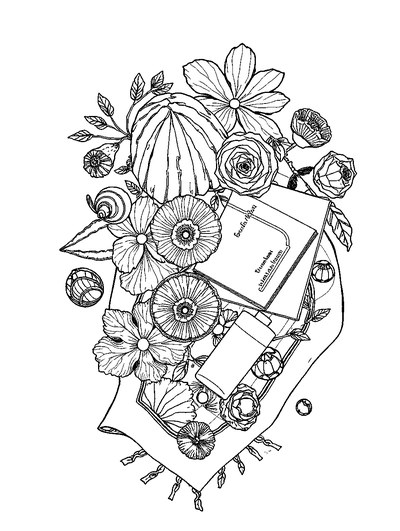
Aesthetic Beach Towel Flat Lay with Shells, Book, and Sun Lotion

Ad-Darr — The Distresser
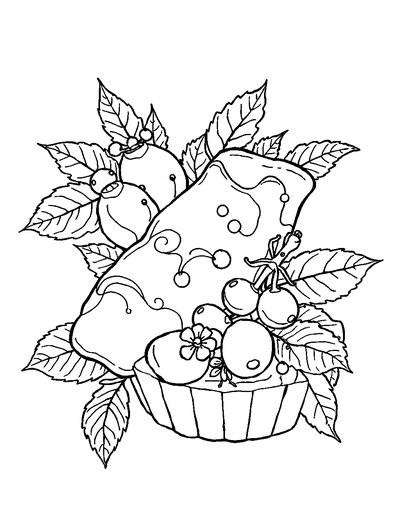
Aesthetic Glazed Fruit Tartlets Topped with Glossy Berries
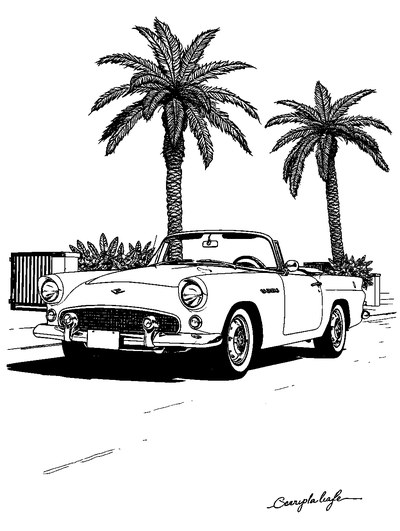
1950s Vintage Convertible Roadster Parked Beside Palm Promenade
Frequently asked questions
How do I play a tap color game in ColorDood?
Open a page, pick a color, select the Fill tool, and tap inside a closed area. The whole region fills in one move. ColorDood is freehand coloring, not color-by-number, so you choose every color yourself. Work on iPhone, iPad, or Android, and leave the canvas when done — your page saves to the gallery automatically.
Is a tap color game the same as color by number?
No. Color by number shows a number in each space and tells you which color to use. A tap color game just means you place color by tapping. ColorDood has no numbered cells; it gives you outlines and 11 tools such as Fill, Brush, and Watercolor, so you decide the colors and where they go.
Can I play a tap color game offline?
Yes, once pages are available on your device. ColorDood works with no WiFi after that, and your gallery and core tools stay on the phone or tablet. No login is needed and there are no ads. The full offline library download is a Premium feature. Check /download for the app on iOS and Android.
Ready to play a free coloring game?
Download ColorDood — free AI adult coloring book and coloring game with 250+ free pages (4,500+ with Premium), 50+ color palettes, PDF & HD exports (Premium), and no login required.
