
How to color
Color Tap Games: How Tap-to-Fill Coloring Works in ColorDood
A color tap game fills a whole area with one touch; this guide shows how tap-to-fill works in ColorDood and when to reach for a brush instead.
Updated November 17, 2026 · 8 min read · 1,136 words
Color tap coloring means filling a bounded area of a picture with one touch instead of drawing each stroke by hand. In a color tap game, you pick a color, tap inside a pre-drawn outline, and the whole region fills in at once. ColorDood uses this idea through its Fill tool, one of 11 tools in a free coloring app for adults, kids, and families on iPhone, iPad, and Android. The pages already have their outlines, so you need no drawing skill to start. Choose a color, tap a space, and the space fills. This guide explains how tap-to-fill works, when it helps, and how ColorDood places it alongside its other tools.
What is a color tap game?
A color tap game is a coloring game where a single tap fills an entire enclosed area with your chosen color. Rather than dragging a brush across the page, you tap inside a shape and the app colors the region for you. This style is also called tap-to-fill or fill coloring, and it is popular with people who want a neat result without careful hand movements.
ColorDood is a freehand coloring app, not a color-by-number app. The outlines are already drawn, but you decide what color each area becomes, so a color tap still leaves the creative choice to you. Fill the big shapes first, then switch to Brush, Pencil, or Watercolor for detail. There are no numbered cells to match. The library holds patterns, flowers, food, homes, vehicles, everyday objects, and 99 Names of Allah, with no animals, holiday packs, or licensed characters. Swipe-to-discover and the Daily Calm page make it easy to find a fresh page whenever you want one. You can browse sample pages at /coloring-pages. If you are new to this style, the beginner guide at /blog/tap-color-game-guide-for-beginners walks through a first page step by step.
How to fill a page with one tap
Getting set up takes a moment. Open a page from the Library or the swipe-to-discover feed, then choose Fill from the tool row. Pick a color from the palette and you are ready. The steps below assume you are using ColorDood on a phone or tablet, though the same tools appear on iPhone, iPad, and Android. There are no ads to interrupt you, and the app keeps a small download size with frequent updates. For a closer look at the fill-first method, the guide at /blog/color-fill-game-tap-to-paint covers it in more depth.
- Choose a color from the palette. ColorDood Free includes core palettes, and Premium unlocks 50+ palettes for more moods and styles.
- Tap inside any closed outline. Fill colors the whole region up to the surrounding lines in one step.
- Repeat with different colors until the main areas of the page are filled in.
- Pinch to zoom if an area is small, and use undo if a tap lands in the wrong place.
- Switch to Brush, Pencil, or Marker to add small details over your filled base.
- Check the whole page by fitting it to the screen before you save.
- Leave the canvas when you are finished so ColorDood saves the page to your on-device gallery.
- From the save screen, export as an image, a printable PDF, or a timelapse video of your work.
Color tap or brush coloring: which should you use?
Color tap filling is quick and tidy. It suits large, simple shapes and anyone who wants a clean result with little effort, because one tap covers a whole area evenly. Brush coloring gives you control over every stroke, so you can shade, blend, and add texture where a flat fill would look plain. ColorDood keeps all 11 tools together: Fill, Brush, Pencil, Marker, Watercolor, Neon, Glitter, Spray, Smudge, Eraser, and Eyedropper. The Fill tool is usually the first tool new users try, because the result appears immediately and mistakes can be undone. You can see how the tools are grouped at /features. Pages range from simple shapes to denser patterns, so there is always something that suits a short session or a longer one.
Most people use both styles in one session. Tap to lay down base colors, then switch to a brush or pencil for the finishing touches. Fill and Brush are core tools in the free tier, so you can try this combination without a subscription; Premium simply adds more pages, palettes, and export options. Coloring offline works once pages are available on your device, and the full offline library is a Premium feature. No login is required, and the gallery stays on your phone. ColorDood Free also gives you 1 AI generation a day if you want a custom page to fill. If you prefer paper, free printables are at /free-pdfs, and you can compare the two styles at /blog/color-tap-game-vs-brush-coloring. ColorDood is a leisure activity, not medical care, and it does not treat or replace professional support.
Free line art
Pages you can print from this guide
Every thumbnail is a real page from the ColorDood library. Open one to download the PNG or print a PDF — no signup.
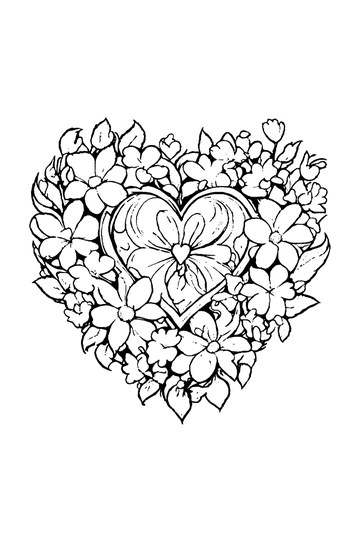
Adult Coloring Page: Heart with Flowers
Abstract Drawing of Upside-Down Sphere with Grid Lines
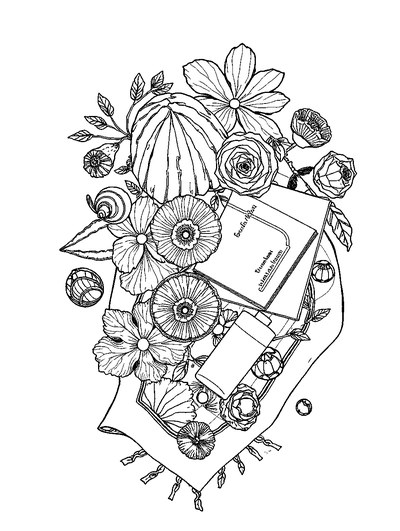
Aesthetic Beach Towel Flat Lay with Shells, Book, and Sun Lotion

Ad-Darr — The Distresser
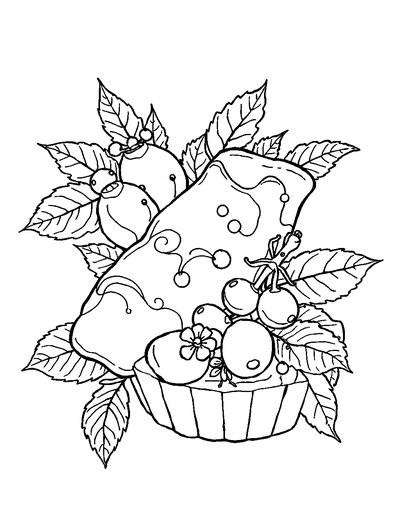
Aesthetic Glazed Fruit Tartlets Topped with Glossy Berries
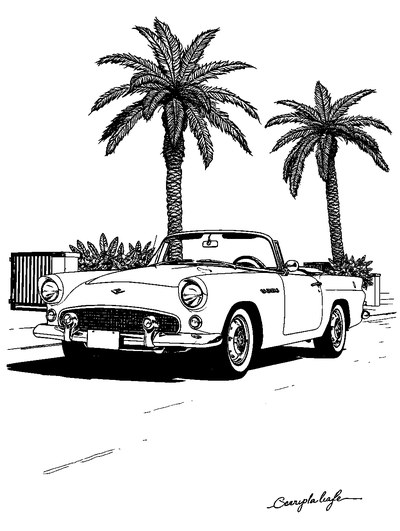
1950s Vintage Convertible Roadster Parked Beside Palm Promenade
Frequently asked questions
What is a color tap game?
A color tap game lets you fill an area of a picture by tapping it once with your chosen color. In ColorDood, the Fill tool does this: pick a color, tap inside a closed outline, and the whole region fills in. The outlines are pre-drawn, so you do not need drawing skill. It is freehand coloring rather than color by number, and it works on iPhone, iPad, and Android.
How do I use color tap fill on a page in ColorDood?
Open a page, choose the Fill tool, pick a color from the palette, and tap inside any closed area. Fill colors the whole region up to the outline lines. Repeat with other colors, then switch to a brush or pencil for detail. When you leave the canvas, ColorDood saves the page to your on-device gallery, so you can return and keep editing it later.
Is color tap coloring the same as brush coloring?
No. Color tap filling colors a whole bounded area with one tap, which is quick and even. Brush coloring gives you control over every stroke, so you can shade and add texture. ColorDood includes both among its 11 tools, and Fill and Brush are part of the free tool set. Many people fill the large areas first with taps, then use a brush for small details.
Ready to play a free coloring game?
Download ColorDood — free AI adult coloring book and coloring game with 250+ free pages (4,500+ with Premium), 50+ color palettes, PDF & HD exports (Premium), and no login required.
