
How to color
Color Fill Game: Tap to Paint and Save Pages in ColorDood
A color fill game fills an area with one tap. This guide shows how to paint, save, and print pages in ColorDood.
Updated November 17, 2026 · 8 min read · 1,038 words
A color fill game is a coloring app where you tap inside a closed outline and the whole area fills with your chosen color. ColorDood is a free coloring book app for iPhone, iPad, and Android that works this way. You open a page with pre-drawn outlines, pick a color, and tap to fill each section, so no drawing skill is needed. ColorDood uses freehand coloring rather than color-by-number, which means there are no numbered cells to match and you choose every color yourself. Alongside Fill, the app includes Brush, Pencil, Watercolor, and other tools if you want to add detail later. This guide explains how filling works in ColorDood, how to start and save a page, and what is included for free.
How tap to fill works in a color fill game
Tap to fill means you choose a color and tap once inside a closed outline, and that whole region takes the color. In ColorDood, the Fill tool does this on the pre-drawn lines of each page. You do not trace edges or color cell by cell, and a single tap can cover a large area in one move. That is what makes a color fill game quick to start, even if you have never colored on a phone before. If a tap lands on the wrong section, undo lets you try again.
Because the lines are already drawn for you, you can give a page a base coat with just a few taps and then decide whether to add more. Switch to Brush, Pencil, Marker, Watercolor, Neon, or Glitter when you want shading, texture, or fine detail in selected areas. ColorDood is freehand coloring, so the choice of color is always yours rather than matched to a printed number. You can pinch to zoom for tiny sections and undo a step that did not look right. The library is family-friendly, so the same page can suit a child or an adult. If you want the bigger picture behind this style of app, the guide at /blog/color-tap-fill-coloring-game covers the wider color tap idea and how it sits alongside other coloring tools.
Start your first page in a few taps
Getting started with ColorDood takes less than a minute. Open the Library to browse pages by category, or choose Daily Calm if you would rather have a featured page picked for you. The Swipe deck is another quick way to find a design you like. Then follow the steps below. If this is your first time with a color fill game, the guide at /blog/tap-color-game-guide-for-beginners walks through a first page in more detail.
- Download the app from /download on the App Store or Google Play; the free version asks for no login
- Open a page from the Library, the Swipe deck, or the Daily Calm featured page
- Choose the Fill tool, then pick a color from one of the palettes on offer
- Tap inside each closed outline to fill that whole area in a single move
- Pinch to zoom for small sections, and use undo if a tap lands on the wrong area
- Switch to Brush or Watercolor for detail, then leave the canvas when you are done
Save, share, and print your page
When you leave the canvas, ColorDood saves your work to the gallery on your device automatically, so you can close the app and come back to the same page later. Core tools and the on-device gallery keep working offline once pages are available on your device; the full offline library download is a Premium feature. The app needs no account, so your artwork stays on your phone or tablet. If you want a file to keep or send, the save screen offers a clean image export and a PDF you can print. Gallery copies are saved without a watermark.
A PDF export is handy when you want a paper copy of a finished page, and you can also browse ready-made sheets at /coloring-pages and /free-pdfs to print at home. If you are curious how filling compares with drawing your own lines, the guide at /blog/color-tap-game-vs-brush-coloring explains the difference between tap filling and brush coloring. To see which tools and palettes come with the free version and which are part of Premium, take a look at /features and /pricing. The app also offers AI page generation, swipe-to-discover, and a daily streak that grows when you color and save a page.
Free line art
Pages you can print from this guide
Every thumbnail is a real page from the ColorDood library. Open one to download the PNG or print a PDF — no signup.
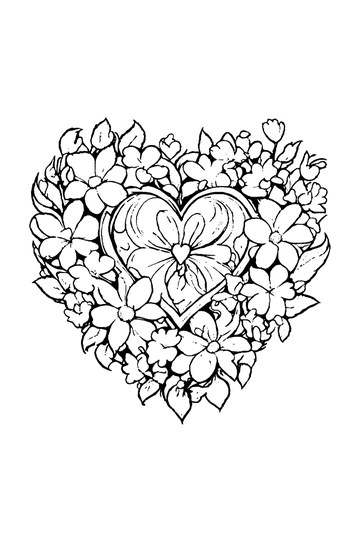
Adult Coloring Page: Heart with Flowers
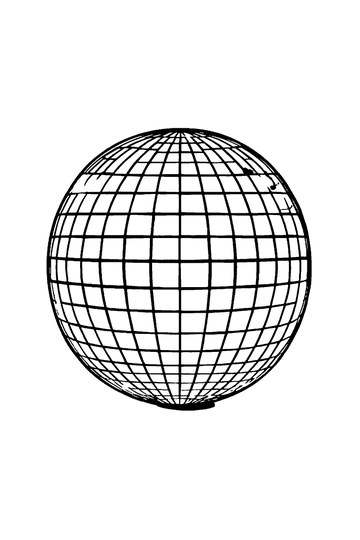
Abstract Drawing of Upside-Down Sphere with Grid Lines
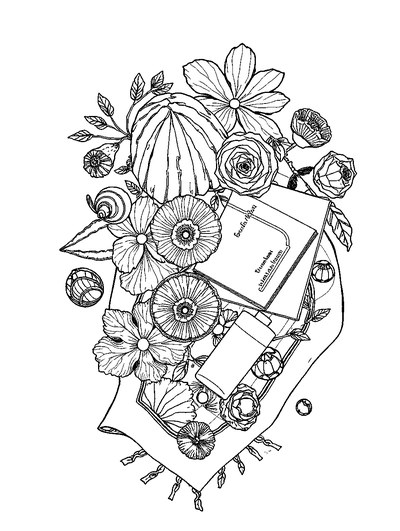
Aesthetic Beach Towel Flat Lay with Shells, Book, and Sun Lotion

Ad-Darr — The Distresser
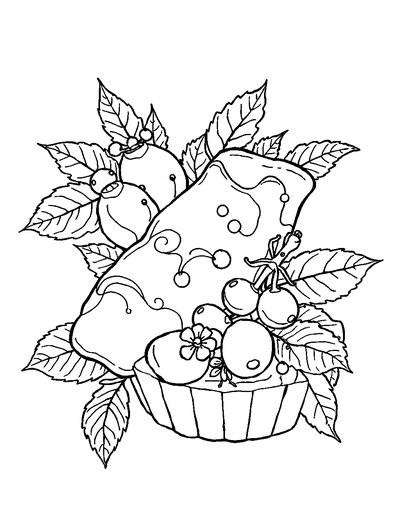
Aesthetic Glazed Fruit Tartlets Topped with Glossy Berries

1950s Vintage Convertible Roadster Parked Beside Palm Promenade
Frequently asked questions
Is ColorDood a color fill game I can tap to paint?
Yes. ColorDood works as a color fill game: choose the Fill tool, pick a color, and tap inside a closed outline to fill that whole area in one move. It is freehand coloring, not color-by-number, so you decide every color yourself. ColorDood is free on iPhone, iPad, and Android, with 250+ pages to start and no login required.
Can I play a color fill game offline without an account?
ColorDood works offline once pages are available on your device. Core tools and your on-device gallery stay usable with no WiFi, and no login is required, so you can tap to fill and save a page while traveling. The full offline library download is a Premium feature, so save the pages you want before you go.
Does the color fill game let me print or export my page?
Yes. In ColorDood you can save a finished page as an image or export a PDF when you want paper copies. Leaving the canvas also saves your work to the on-device gallery automatically. Free pages and tools cost nothing; /pricing lists what Premium adds, including HD exports and the full offline library.
Ready to play a free coloring game?
Download ColorDood — free AI adult coloring book and coloring game with 250+ free pages (4,500+ with Premium), 50+ color palettes, PDF & HD exports (Premium), and no login required.
