
App guides
Digital Coloring for Beginners: A Simple Step-by-Step Start
A beginner's guide to digital coloring: how to pick a page, learn a few tools, and save your work as you go on your phone or tablet.
Updated November 17, 2026 · 8 min read · 1,177 words
Digital coloring is the simple habit of adding color to pre-drawn line art on a phone or tablet, and it is easy to start with ColorDood. You do not need to draw. Open a page, pick a color from a palette, and tap an area to fill it or brush over it by hand. ColorDood is a free coloring app for iPhone, iPad, and Android that keeps your work on your device, with no login needed. The free version includes 250+ pages, 11 tools, and one AI-generated page a day. This guide walks a beginner through picking a page, learning a few tools, saving work, and trying a first session. It is a leisure activity, not medical care, and it does not replace professional support.
What do I need to start digital coloring?
You only need a phone or tablet and a coloring app. With ColorDood, download the app from the App Store or Google Play, open the Library, and choose a page. There is no account to set up and no paper, pencils, or scanner to buy. The app works with no WiFi once a page is available on your device, so you can color on a trip or at home, and your gallery and core tools stay on-device. A full offline library download is a Premium feature. Because the outlines are pre-drawn, no drawing skill is needed — you simply add color to the shapes you see. If this is your first time, try a page with bold, simple outlines before moving on to finer patterns.
A steady surface and a little time help, but neither is required. In ColorDood you can pinch to zoom for fine detail and use undo if a stroke goes wrong, so a mistake costs nothing. Pick a page with a few large areas for your first try, because a dense design can feel like a lot of work at once. You can also turn on a calm sound from the header if you like background audio while you work, or keep the phone silent. Start with a single page rather than a whole book so the first session feels easy to finish. You can browse free pages at /coloring-pages, and the wider guide at /blog/coloring-apps-for-android-phone compares coloring apps across phone platforms if you are still choosing where to start.
Your first digital coloring session, step by step
A first session is easiest when you know the order. Here is a short checklist you can follow in ColorDood from opening the app to saving your page. The aim is a finished picture you are happy with, not speed. Work through the steps at your own pace and stop whenever you like; an unfinished page stays in your gallery for another day. Each step takes a minute or two, so the whole flow fits into a short break. If you prefer, skip the detail tools on your first page and use Fill alone — you can always go back and add more later.
- Open ColorDood and pick a page from the Library, or swipe through Discover until a design catches your eye.
- Choose a palette, then tap Fill to color the large enclosed areas in one touch each.
- Switch to Brush, Pencil, Marker, or Watercolor to add edges, shading, or small details.
- Use undo or the Eraser if a stroke does not look right, and zoom in for tight spots.
- Try the Eyedropper to reuse a color you like, and Smudge to soften a boundary.
- Leave the canvas when you are done so the gallery saves your work, or open the save screen for an image, PDF, or timelapse video.
How do I save and share my digital coloring?
When you leave the canvas after painting, ColorDood saves your page to the on-device gallery automatically, so you can open it again later and keep editing. For a file you can print or send, the save screen offers image, PDF, and timelapse video export. Clean PDF and HD exports are part of Premium, and image and PDF files carry a small Made with ColorDood watermark. Gallery copies are not watermarked, so the gallery is the simplest place to keep your work as you go. A timelapse video records your strokes so you can replay how the page came together. Everything is stored locally on your phone or tablet, and no account is needed to keep your gallery private.
Digital coloring is flexible about where the finished page goes. You can leave it in the gallery, print a PDF for the table, or share an image with family. The library is family-friendly for adults and kids, with original art such as patterns, flowers, food, homes, vehicles, and 99 Names of Allah — and no animals, holiday packs, or licensed characters. If you are weighing paper against an app, /blog/coloring-book-app-digital-pages compares them, while /blog/drawing-app-vs-coloring-app-which-to-choose explains how a coloring app differs from a drawing app. See the full tool list at /features or pick up free printables at /free-pdfs. Coloring is a leisure activity, so treat it as a simple pastime rather than a task with a result to prove. Whether you color for five minutes or an hour, the steps in this guide stay the same.
Free line art
Pages you can print from this guide
Every thumbnail is a real page from the ColorDood library. Open one to download the PNG or print a PDF — no signup.
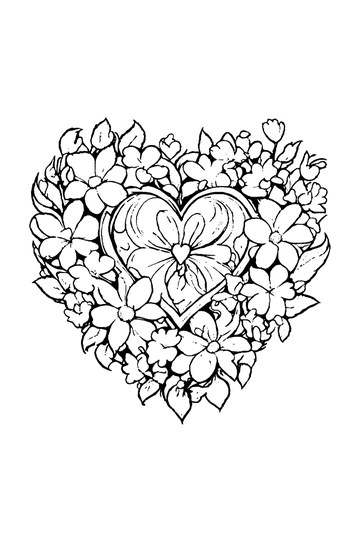
Adult Coloring Page: Heart with Flowers
Abstract Drawing of Upside-Down Sphere with Grid Lines
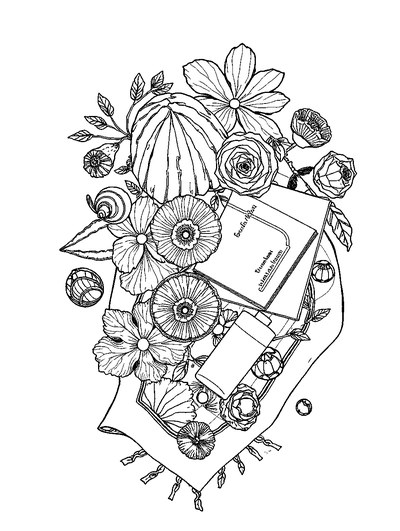
Aesthetic Beach Towel Flat Lay with Shells, Book, and Sun Lotion

Ad-Darr — The Distresser
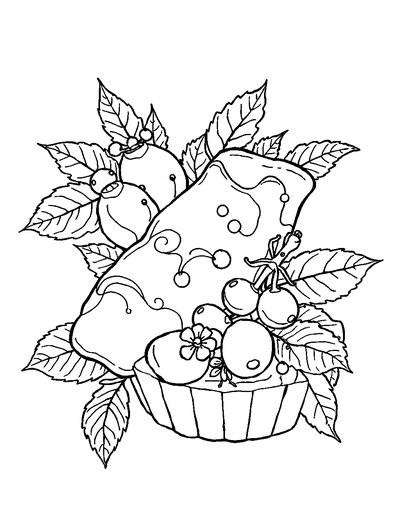
Aesthetic Glazed Fruit Tartlets Topped with Glossy Berries

1950s Vintage Convertible Roadster Parked Beside Palm Promenade
Frequently asked questions
What is digital coloring?
Digital coloring means filling in pre-drawn line art on a screen instead of on paper. In ColorDood you tap or brush color into outlined pages — flowers, patterns, homes, food, and vehicles — using 11 tools and palettes. There are no numbered cells, so you choose every color yourself. It works on iPhone, iPad, and Android and needs no drawing skill.
Is digital coloring hard for a beginner?
No. Digital coloring is easy to start because the outlines are already drawn for you. ColorDood gives you a Fill tool that colors a whole area in one tap, plus brushes if you want more control. You can undo any stroke, zoom in for detail, and save your page to the gallery. Start with a page that has a few large areas, then try denser designs when you feel ready.
Do I need to know how to draw for digital coloring?
No drawing skill is needed. Digital coloring in ColorDood starts with ready-made outlines, so you only add color. If you want a fresh page, the app can also generate coloring pages from a short prompt — one a day for free, five a day with Premium. You can color with a fill tap or a brush, export a PDF to print, and keep everything on your device without an account.
Ready to play a free coloring game?
Download ColorDood — free AI adult coloring book and coloring game with 250+ free pages (4,500+ with Premium), 50+ color palettes, PDF & HD exports (Premium), and no login required.
