Troubleshooting
Undo, Redo & Fixing Mistakes in ColorDood
ColorDood keeps up to 12 undo steps, with undo and redo buttons in the canvas header. The Eraser paints white, so use it as a paint tool, and rely on saved copies for bigger fixes.
Updated November 20, 2026 · 7 min read
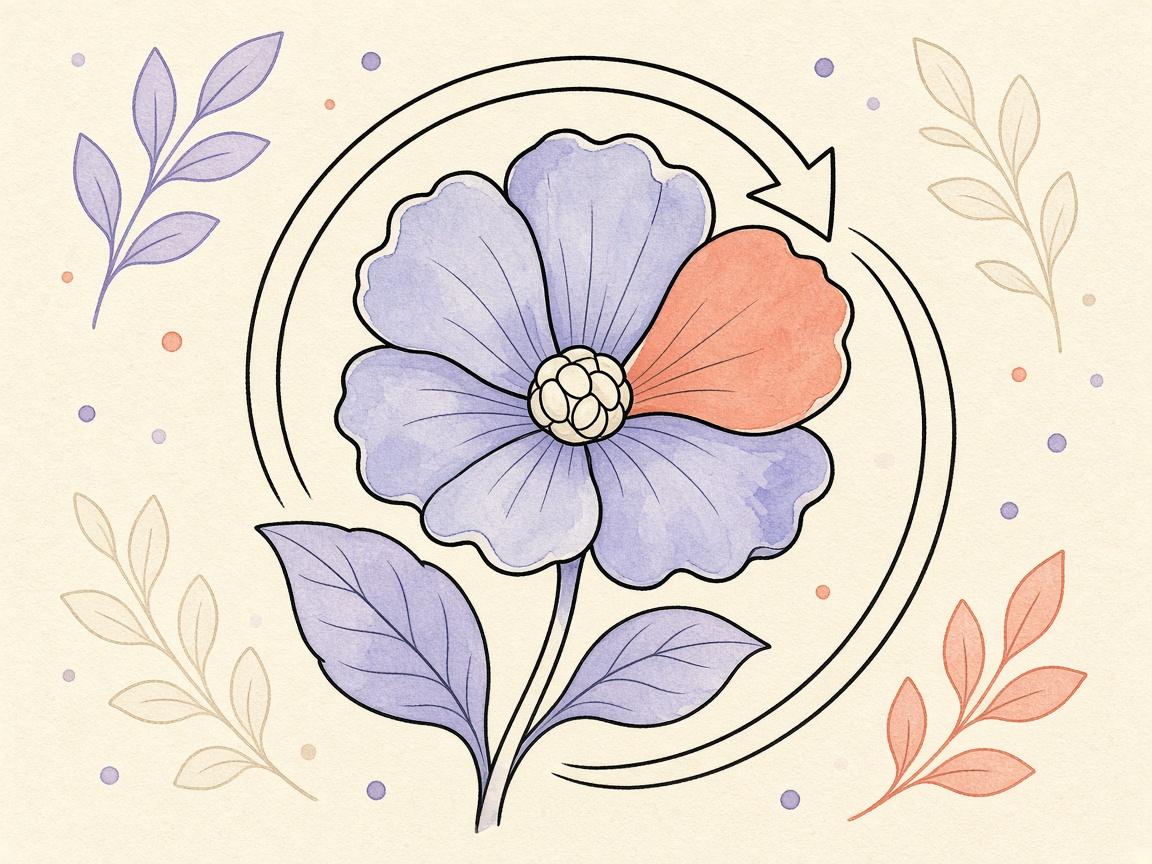
ColorDood keeps up to **12 undo steps**, and the undo and redo buttons sit in the canvas header. For most mistakes, that is enough. For a stroke that went too far, you can use the Eraser, the Eyedropper, or Smudge to recover the area. Past 12 steps, a saved copy is your reset point.
This guide covers how undo and redo work, what the Eraser really does, how to match colors, and what to do when a mistake is too old to undo. It also explains when your work is saved.
How do undo and redo work?
Each stroke, fill, or tool action is one step in the history. Tap undo to step back, and redo to step forward again. ColorDood keeps up to 12 steps. That is a short window, so undo is best for the last few moves rather than a long session.
- Undo: steps back, up to 12 steps
- Redo: steps forward again after an undo
- Both buttons live in the canvas header
What does the Eraser actually do?
The Eraser paints white. It does not peel away color and restore the original blank page. That matters, because a white area is now paint, and you can see it in your Gallery copy. If you want the page back to a clean white, the Eraser covers that. If you want to fix a single shade, you will usually be better off painting over it.
Use the Eraser in small strokes while zoomed in, and check at Fit screen. A white edge can look sharp or messy depending on your brush size.
How do I match a color I already used?
Use the Eyedropper. It samples the color under your touch and then switches the tool back to the brush. That means you can pick a color from an area you already painted and continue with the same shade without hunting for it in the palette.
- Choose the Eyedropper in the tool dock
- Touch the area that has the color you want
- The brush returns with that color
- Paint the matching area and check it at Fit screen
How does Smudge help with mistakes?
Smudge blurs the color that is already on the canvas. It is useful when a hard edge sticks out, or when two colors meet in a way that looks harsh. It does not remove color. It spreads it. Try Smudge lightly, then zoom out to see whether the blend looks natural.
How do I avoid mistakes in the first place?
- Keep Inside mode on, so strokes stay in the shape where your touch starts
- Use a smaller brush near edges, and zoom in when the space is tight
- Test a new paint type on a scrap page before a finished piece
- Step back to Fit screen every few minutes to check balance
Inside mode is the default, and it is the main protection against accidental spill. Free mode paints anywhere, so use it on purpose.
What if a mistake is past 12 steps?
Once a mistake falls outside the 12-step history, you cannot undo it from the canvas. You have two good options. The first is to start over from a copy you saved earlier. The second is to use the copy in your Gallery as a reference and repaint the page.
Save another copy to gallery from the save screen when you reach a point you like. That gives you a fallback. The Gallery guide explains how to reopen a page and keep editing.
When does ColorDood save my work?
ColorDood auto-saves your piece to the gallery when you leave the canvas after painting. Tap to reopen it and keep editing. Think of the gallery as your longer-term record and undo as your short-term safety net.
If you are unsure whether a session saved, leave the canvas and check the gallery tile. The streak counter is separate: it counts when you leave the canvas after at least one stroke. If your streak looks wrong, see our guide on the streak not counting fix.
A simple routine for fixing a page
When a page looks wrong, it helps to fix it in a fixed order. Going in a random direction can create new problems. Work through the page slowly, one step at a time, and check each change before you make the next.
- Stop painting and tap Fit screen to see the page as a whole
- Undo the most recent strokes if they caused the problem
- Use the Eyedropper to match any color that drifted
- Smudge lightly where two colors meet harshly
- Zoom in on the spot you are fixing, and use a smaller brush
- Save a copy to your gallery once the page looks right
This routine works for most small problems. If the page needs a bigger fix, it is often better to start a new version from a saved copy than to keep stacking corrections.
Mistakes are part of coloring, and most of them are small. A stray line near an edge or a shade that is a little too bright is easy to live with once the page is done. Give yourself permission to leave a small flaw. Many people find that a page with a few honest mistakes feels more personal than one that was wiped and repainted many times.
Mistakes near the edges
Edges are where most mistakes happen. A brush that is a little too wide can leave color on the wrong side of a line, and a quick hand can leave a white gap. Zoom in to 3x or 4x, drop the brush size, and work the edge in short strokes. Check the edge at 1x afterward, because small errors look bigger up close than they do on the finished page.
If you see color that has leaked outside a shape, check that Inside mode is still on in the tool dock. Inside mode keeps strokes inside the shape where your touch started, which is the simplest protection against spill.
What this guide does not cover
This guide covers undo, redo, Eraser, Eyedropper, and Smudge. It does not cover recovering a file deleted from the gallery or changes made outside ColorDood. It also does not promise that every device will show the same layout in the header. Check the buttons on your phone, and keep a saved copy of any piece that matters to you.
Next time you make a mistake, pause, undo once, and look again at Fit screen. Most fixes take less time than starting over.
Frequently asked questions
How many undo steps does ColorDood keep?
Up to 12. Once a mistake is older than that, you cannot undo it from the canvas and need a saved copy or a fresh start.
Does the Eraser remove color?
Not in the sense of going back to a blank page. The Eraser paints white, so it works like a white brush over the area.
How do I match a color I already used?
Use the Eyedropper. It samples a color from the canvas and then switches you back to the brush, so you can keep painting with the match.
When are my changes saved?
Your gallery copy is saved when you leave the canvas after painting. Use Save on the canvas to make a separate copy at any time.
Ready to play a free coloring game?
Download ColorDood — free AI adult coloring book and coloring game with 1000+ pages, 11 tools, calming sounds, and no login required.