Product guide
ColorDood Gallery: Saved Art, Continue Editing & Limits
The ColorDood Gallery saves your work when you leave the canvas, lets you keep editing, and holds up to 60 items. Here is how it works and how to back up before you delete.
Updated November 15, 2026 · 7 min read
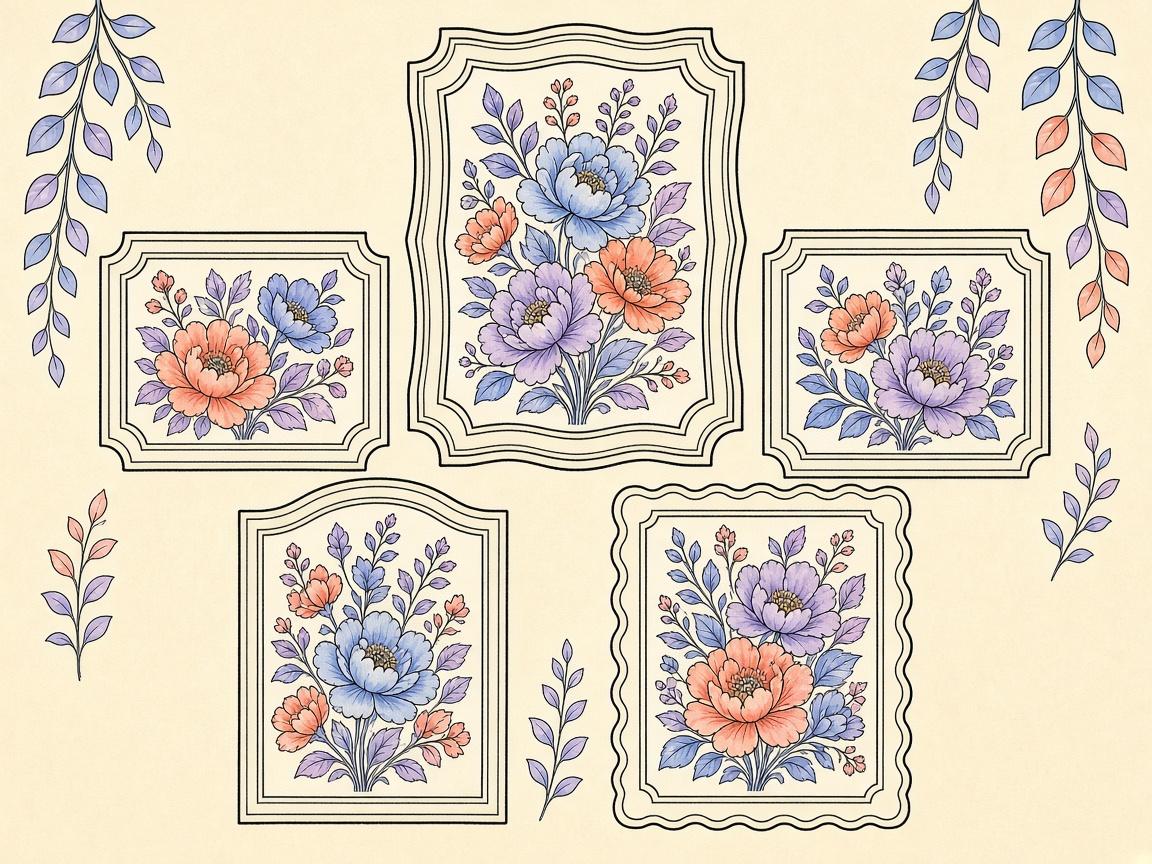
**The ColorDood gallery is where your painted pages live.** When you leave the canvas after painting, the app saves a copy there automatically. You can reopen that copy later and keep working. This guide covers how saving works, how to continue a piece, what the 60-item limit means, and how to back up your work before you delete anything.
ColorDood is a free coloring app for iOS and Android. There are no accounts, and your data stays on your device. That is good for privacy, but it also means the backup steps below are your responsibility. Read them before you clear space.
How auto-save works
When you leave the canvas after painting, ColorDood saves your page to the gallery. You do not need to tap a save button for this. The save happens at the same moment the app counts your daily drawing for the streak, so a page that you leave without any strokes is not saved as a new piece.
If you open a page and leave without painting, nothing new is added. The app waits for real work before it adds an item to the gallery.
Reopening and continuing a piece
Open the Gallery tab and tap any tile to reopen it on the canvas. You can keep editing from where you stopped. Add more strokes, change colors, or fill new areas. When you leave the canvas again, the piece updates in the gallery.
This is useful for longer projects. You can finish a page over several days without losing the earlier layers. If a session goes wrong, Undo covers up to 12 steps, which can help before you leave the canvas.
Manual copies from the Save screen
The Save screen opens from the canvas Save button. It has several options. Save another copy to gallery adds a second internal copy. This is useful when you want to try a different version of a page and keep the first one as it is.
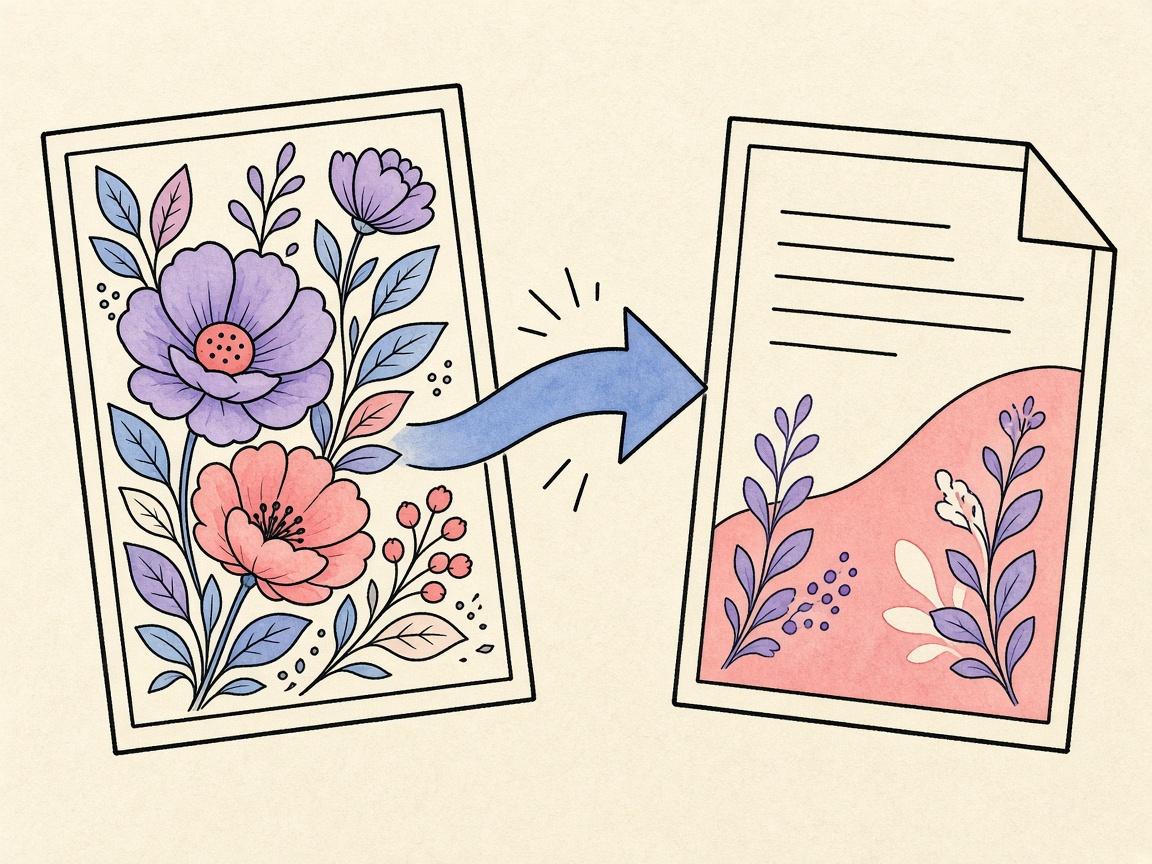
Save as image and Save as PDF make watermarked files for sharing or printing. Those exports go to Photos or to Downloads, depending on the option and your device. Gallery copies stay internal and are not watermarked. Keep that difference in mind when you choose what to share.
The 60-item limit
The gallery holds a maximum of 60 items. This is a fixed limit, so plan around it if you color often. It does not mean you must delete old work, but it does mean that a full gallery needs attention before a new piece can be saved.
When the gallery is full, do not delete right away. First, export any pieces you want to keep. Save them as image or PDF so they live in Photos or Files. Then delete the items you no longer need. This order protects your art.
Deleting items one at a time
Each gallery item can be deleted on its own. This means you can clear a few old attempts without touching your favorites. Take a moment before you delete, because a removed internal copy is not something the app can bring back for you.
A simple habit is to review the gallery once a week. Export the pieces you want to keep, then delete the drafts you no longer need. Keeping a small gallery makes it easier to find things.
Backing up your art
There is no ColorDood cloud account to fall back on. Your gallery lives on the device. If you change phones, reinstall the app, or lose the device, the gallery copies may not be available. Exports are the safest backup you have inside the app.
Save important pieces as image or PDF before you delete, change devices, or remove the app. Store them in Photos or Files, or copy them to a folder you already back up. Check that the files open before you rely on them.
Organizing a gallery that stays useful
A gallery with 60 items can feel crowded fast. One approach is to treat the gallery as a working space, not an archive. Keep active projects there, and export finished pieces you want to keep forever. When you finish a page you are proud of, save it as an image or PDF right away. That way the file lives outside the app, and the gallery stays light.
Another approach is to use a second copy for experiments. Use the Save screen to save another copy to the gallery before you try a risky change. If the new version works, delete the older one later. If it does not, you still have the original.
Sharing without losing track
When you share a piece, the share options come from the Save screen. Share image, share PDF, and share video are the three options. The shared file is the watermarked version, so the recipient will see the app icon and the words Made with ColorDood. Keep your unwatermarked gallery copy in the app if you want a clean version for yourself.
What to do if you change devices
Changing phones is a moment to slow down. Before you move on, export every piece you want to keep and check that the files open. Store them somewhere you control, such as Photos or Files. Then remove only the gallery items you have already backed up. This order keeps the risk low even if something goes wrong during the switch.
If you are unsure whether a piece is saved in the gallery, open the Gallery tab and look for it before you delete anything. A quick look can prevent a mistake that cannot be undone from inside the app.
A short checklist
- Paint on a page, then leave the canvas so the piece auto-saves.
- Open the Gallery and tap a tile to continue editing.
- Use the Save screen for a second copy if you want to try a new version.
- Watch the count. The gallery holds up to 60 items.
- Export anything you want to keep before deleting.
- Delete items one at a time, only after the export is saved.
- Store exports in Photos or Files so they are safe outside the app.
What this does not cover
This guide does not explain every option on every device. Exact file locations and share options can depend on your phone and its settings. It also does not promise that gallery copies will survive a reinstall or a device change, so make exports for anything you value.
Saving art is a creative habit, not a medical or therapeutic one. Nothing in this guide is medical advice.
Frequently asked questions
When does ColorDood save my work to the gallery?
It auto-saves when you leave the canvas after painting. You can also save a manual copy from the Save screen.
How many items can the gallery hold?
The gallery holds a maximum of 60 items. When it is full, export anything you want to keep, then delete items you no longer need.
Are gallery copies watermarked?
No. Internal gallery copies are unwatermarked. Exports saved as image or PDF carry the app icon and the words Made with ColorDood.
Is my gallery backed up to the cloud?
ColorDood has no accounts, and your data stays on the device. Export anything important to Photos or Files before you delete or change phones.
Ready to play a free coloring game?
Download ColorDood — free AI adult coloring book and coloring game with 1000+ pages, 11 tools, calming sounds, and no login required.