Product guide
Export a ColorDood Timelapse Video: Download, Save & Share
To export a ColorDood timelapse, finish or pause your page, tap Save, then choose Download video. The MP4 goes to Photos, and the clip appears on your Gallery tile once it is downloaded.
Updated November 17, 2026 · 7 min read
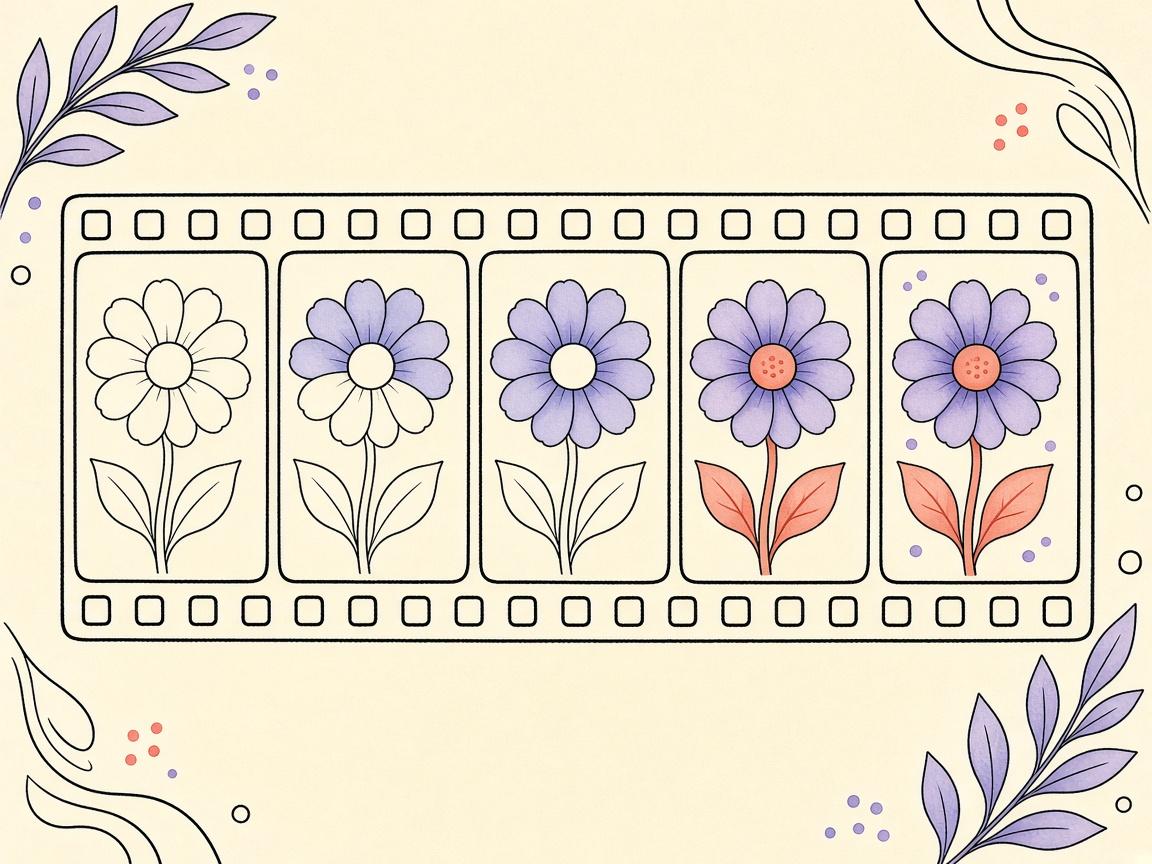
To **export a ColorDood timelapse video**, finish the page (or stop where you are), tap Save from the canvas, choose Download video, and wait for the processing screen to finish. The MP4 lands in Photos. It shows your coloring from start to finish, with a small watermark.
This guide walks through the save screen, what the processing step means, where the file goes, and what to check when something does not work. Menu wording can shift a little with device updates, so use this as a map and check the screens on your own phone.
What you need before you start
- A page with at least one stroke on it. A blank page has nothing to replay.
- Enough free storage on your phone for a short video file
- Photo library permission for ColorDood, if your device asks for it
- Time to keep the app open while it processes
You do not need an account, and nothing is uploaded to set this up. The video is made on the device from the work you did there.
Step 1: Open the save screen
Color the page as far as you want. A timelapse records the strokes you made, so the page does not have to be finished. When you are ready, tap Save in the canvas. The save screen gives you several options: save another copy to your gallery, save as image, save as PDF, download video, and share.
Step 2: Download the video
- On the save screen, tap Download video.
- A processing screen appears. Leave it on screen and keep ColorDood open in the foreground.
- When processing finishes, the MP4 is saved to your Photos library.
- Open Photos to confirm the clip is there and plays.
The video is created when you ask for it. It is not generated in the background for every page you touch, so the download is a deliberate step each time.
What the processing screen means
Building a timelapse is real work for the phone. The time it takes depends on the device, the length of your session, and whatever else the phone is doing at the moment. There is no fixed number to plan around. Give it time and do not switch away from ColorDood during the step.
If the app closes during processing, the video may not be saved. Start again from Save and keep the app open until the screen clears.
Where the video goes and what the watermark looks like
The MP4 goes to Photos, so you can find it in your recent items or by searching for the date. Downloaded videos include the app icon and the words “Made with ColorDood.” That mark is there for the shared and saved file.
Your Gallery copy inside the app is kept without the watermark. Downloading the video does not change the artwork you keep in the app.
Share the video and find it in Gallery
You can share the video from the save screen using the share sheet on your device. After a download, the timelapse also appears on that page’s tile in Gallery. Before you download, the tile does not show a video. This is why the Gallery tile can look like a still picture until you have made the clip.
For a printable still, see our guide on how to export a PDF from ColorDood. For the rest of your saved work, the Gallery guide explains tiles and reopening pages.
If the download does not show up
- Check free storage in your device settings and clear some space if it is low
- Check ColorDood’s photo permission in your device settings and allow access if it is off
- Make sure processing finished rather than the app closing early
- Go back to the save screen and try Download video again with the app open
- Update ColorDood from the App Store or Google Play
These checks cover the most common causes. They do not guarantee a fix. If the problem keeps coming back, note your device model and operating system version and contact ColorDood through the channel listed on its website.
Tips for a timelapse you will like
A timelapse shows every stroke you made, in order. That means a messy first pass shows up in the clip too. Many people find it helps to plan the page a little before they start. Pick the palette, decide roughly where the darkest areas go, and then paint. The clip often looks more deliberate when the work has a clear order.
- Decide on a palette before you start, so the clip does not jump between many color choices
- Work from one area to the next rather than jumping across the page
- Use Undo on quick mistakes, since a timelapse records what stays on the page
- Save a copy to your gallery before you make the video, so you keep a clean still
- Give the processing screen your attention and leave the app open
If a clip feels too long for a quick share, there is no trimming tool in this guide. Plan shorter sessions on smaller pages, or share the still image or PDF from the save screen instead.
Think about where the clip will end up before you record it. A short timelapse of a small page may be easier to share in a chat than a long one of a dense mandala. You can always save the still image or PDF for a print or a quick share, and keep the video for the process itself. Many people find the process is the part they like to look back on, so it is worth a short download when a page means something to you.
If you are sharing a clip with a child or a family member, explain what they are seeing before they press play. A timelapse can look fast and a little strange at first. A quick sentence about how the page was made helps the clip make sense, and it can start a conversation about the colors you picked.
What this guide does not cover
This is not a video editing guide. It does not cover trimming, adding music to the clip, or uploading to a particular social platform. Use your phone’s own editor or the app you share to for those steps. Ambient sounds in ColorDood are a separate setting under Settings > Sound and are not part of this export.
If you want a timelapse of your next page, paint it, tap Save, and choose Download video before you close the canvas. Keep the app open, and check Photos when the screen clears.
Frequently asked questions
Where does the ColorDood timelapse video go?
The MP4 is saved to your Photos library after the download finishes. On Gallery, the timelapse appears on that page’s tile once you have downloaded it.
Is the timelapse video watermarked?
Yes. Downloaded videos carry the app icon and the words “Made with ColorDood.” Your internal Gallery copy is not watermarked.
Why does the processing screen take a while?
The video is built on your device from your strokes, so time depends on the device and the session. Keep the app open until it finishes.
Do I need an account to download a video?
No. ColorDood does not require a login, and your data stays on the device.
Ready to play a free coloring game?
Download ColorDood — free AI adult coloring book and coloring game with 1000+ pages, 11 tools, calming sounds, and no login required.