Product guide
Zoom and Fine Detail in ColorDood: Coloring Tiny Spaces
ColorDood lets you zoom from 1x to 6x, pan with one finger, and reset with Fit screen. Zoom in for tiny shapes, then step back to check the whole page.
Updated November 18, 2026 · 7 min read
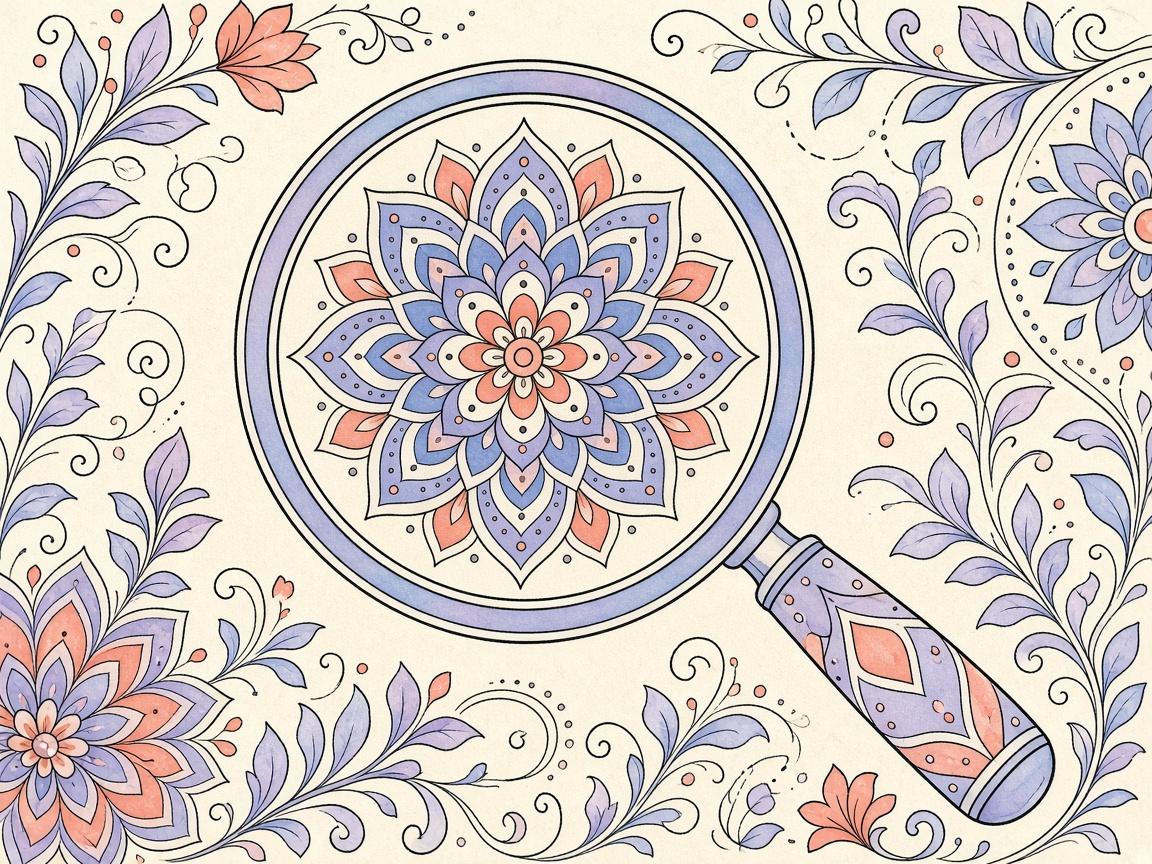
To **color tiny spaces in ColorDood**, zoom in with a pinch, pick a small brush, and use Inside mode so strokes stay in the shape you touch. Then pan with the Hand tool and use Fit screen to step back and check the whole page.
Dense mandalas, small petals, and narrow leaf tips are hard to color at normal size. Zoom solves most of that. It does not replace a steady hand, so the tips below focus on controlling the view and the brush together.
How does zoom work on the canvas?
Place two fingers on the canvas and pinch to zoom. The range is 1x to 6x. You can also use the zoom buttons. The + and − buttons change the zoom in steps of about 1.4x, which is useful when you want a steady, even change rather than a pinch that can overshoot.
- Pinch: free zoom between 1x and 6x
- + and − buttons: steady steps of about 1.4x
- Hand tool: pan with one finger while zoomed in
- Fit screen: returns the view to the whole page
How do I move around when I am zoomed in?
Pan by moving two fingers, or turn on the Hand tool and drag with one finger. The Hand tool is handy when you are working in a small corner and want to slide to the next petal without losing your place. When you return to 1x, Hand mode turns off on its own, so you are back to normal painting.
If you find yourself zoomed in and unsure where you are, tap Fit screen. That resets the view. Then zoom back in on the exact area you want to paint.
Pair zoom with brush size
The brush size slider runs from 4 to 60. Zoom and brush size work together. At 1x, a brush of 20 may be fine for a big petal. At 4x, the same brush covers a lot of a small space, so drop it down. A good starting point for tight areas is somewhere in the 4 to 10 range, then adjust while you watch the stroke.
- Zoom to the area you want, usually 2x to 3x for most detail
- Lower the brush size until the stroke fits the gap
- Paint one short stroke and look at it
- Adjust brush size or zoom before you continue
Use Inside mode for small regions
Inside is the default boundary mode. It clips brush strokes to the enclosed shape where your touch starts. That matters in small spaces, because a slightly wide stroke will stop at the line instead of spilling into the next petal. Free mode paints anywhere, which is useful for shading across a larger area but easy to misuse in tight spots.
For a very small shape, Fill is often faster than brushing. Fill fills the full enclosed region on a tap, so one tap can cover a tiny leaf that would take many careful strokes. Use Brush for edges and shading, and Fill for the solid parts.
A routine for dense mandala areas
Mandalas have many small repeating shapes. A routine keeps you from wandering. Work one ring at a time, not the whole page at once. Start at the center, then move outward so your hand is not crossing finished areas.
- Fit screen, then pick the ring you want to start with
- Zoom to 2x or 3x on that ring and pan with the Hand tool
- Use Fill for the solid shapes and a small brush for edges
- Check the ring at Fit screen before moving to the next
- Take a break if the shapes start to blur together
When should I step back?
Step back when you cannot tell whether a color belongs in a shape, or when the page looks uneven from far away. Tap Fit screen and look at the whole picture. Small details often look different at a distance, and that is the moment to notice balance, not just precision.
If a stroke went wrong while zoomed in, undo can help. ColorDood keeps up to 12 undo steps, so a short run of mistakes is easy to reverse. For the full picture, see our guide on undo, redo, and fixing mistakes.
Common zoom mistakes and how to fix them
Most zoom problems come from one of three habits. The first is painting at 6x for a whole session. High zoom is useful for a small corner, but it makes the rest of the page hard to judge. The second is leaving the brush large when the space is narrow. The third is forgetting to check the result at Fit screen until the end.
- Too much zoom: drop to 2x or 3x, and use Fit screen more often
- Brush too wide: lower the slider until the stroke sits inside the line
- Lost your place: tap Fit screen, then zoom back in on the exact spot
- Hand mode still on: return to 1x, which turns it off, then pan with two fingers if needed
If an edge still spills, check that Inside mode is on in the tool dock. Inside mode keeps strokes inside the enclosed shape where your touch starts, which is the main protection for tight spaces.
Working on both sides of a shape
Some shapes are hard because they are small on one side and wide on the other. A petal tip is a good example. Start from the wide end at a lower zoom, then move to the tip at a higher zoom with a smaller brush. This keeps the big, easy strokes in place and saves the careful work for the narrow end.
When a shape has a line on every side, try Fill first, then go back with Brush at a higher zoom to tidy the edges. The fill gives you a solid base, and the brush cleans up any gap near the line. This order is often faster than trying to brush every inch at 4x.
What this guide does not cover
This guide is about the canvas view and brush controls. It does not cover pen or stylus setup, screen sizes, or how your eyes and hands feel over a long session. Take breaks when you need them. Coloring is a hobby and not medical advice, and no one should push through strain or discomfort to finish a page.
If you want a small challenge, open a dense mandala page from Library, zoom to 3x, set the brush to 6, and color one ring. Then use Fit screen to see how it looks from across the room.
Frequently asked questions
How far can I zoom in ColorDood?
The canvas zooms from 1x up to 6x with a two-finger pinch. You can also use the + and − buttons, which move in steps of about 1.4x.
How do I move around when I am zoomed in?
Use two fingers to pan with a pinch gesture, or switch on the Hand tool and drag with one finger. Hand mode turns off when you return to 1x.
What is the Fit screen button for?
Fit screen resets the view so the whole page is visible again. Use it when you want to check overall balance.
Does zoom change what I save?
No. Zoom changes what you see on the canvas while you paint. Your saved artwork is the page itself, not your current view.
Ready to play a free coloring game?
Download ColorDood — free AI adult coloring book and coloring game with 1000+ pages, 11 tools, calming sounds, and no login required.