
Guides
Import Printable Coloring Pages into ColorDood: The Power-User Guide
ColorDood has no direct import button for arbitrary printables. This pillar guide shows the honest bridge between paper and screen, plus the power-user workflows that make a digital coloring habit stick.
Updated November 20, 2026 · 10 min read · 1,435 words
**ColorDood has no direct import button for arbitrary printable coloring pages.** That is the honest starting point for every power user. ColorDood ships a curated, scholar-guided library of 1000+ pages, and those are the pages you color on screen. Printables stay on paper. Digital pages stay on screen. The bridge between them is a set of deliberate workflows, not a single import step.
This pillar guide is the hub for the Power-User Workflows cluster. It explains the bridge honestly, then points to five deeper guides: boundary modes, advanced zoom, gallery management, sustainable streaks, and ambient sound. Everything here reflects the app as of November 2026, and every claim can be checked on your own phone.
What does 'power user' mean in a coloring app?
A power user is not someone who colors faster. It is someone who controls the four levers that shape a session: input (what page you color), control (how the brush behaves), output (how you save and share), and rhythm (how often you return). ColorDood exposes all four without accounts, cloud sync, or a paywall grind.
- **Input:** 1000+ scholar-guided pages across patterns and mandalas, flowers, fruits and vegetables, homes, vehicles, everyday objects, and 99 Names
- **Control:** 11 tools, 10 palettes, Inside and Free boundary modes, zoom 1x–6x, brush size 4–60, up to 12 undo steps
- **Output:** on-device gallery up to 60 items, image and PDF export, timelapse video export
- **Rhythm:** Daily Calm page that rotates by day, daily streak with at-risk save, optional nasheeds and calm sounds
The honest bridge between paper and screen
ColorDood does not import third-party printable PDFs or images into its coloring canvas. There is no 'import file' step for outside line art. The library is curated and scholar-guided, so the pages you color on screen are the pages ColorDood ships. That is a feature choice, not an oversight: it keeps the library consistent with the app's exclusions and its offline, no-login design.
If import options are added later, this guide will be updated to match. Until then, the bridge has four honest parts: enjoy printables on paper, color ColorDood's pages on screen, turn a photo into a coloring page, and export finished art back to paper.
Workflow 1: Enjoy printables on paper
- Download a pack from colordood.com/free-pdfs — no account, no email gate
- Print at 100% scale on A4 or US Letter, portrait
- Use 65lb to 80lb cardstock if you plan to use markers or heavy colored pencils
- Set printer quality to Best or High so line weights stay crisp
- Color with your usual pencils, markers, or pens
Site packs come from the same scholar-guided library as the app, so the same subject rules apply: no animals, birds, Christmas, Halloween, or licensed characters. This is the fastest route to paper tonight.
Workflow 2: Color digitally in ColorDood
Open the Library and browse the category strip: All, Patterns and Mandalas, Plants and Fruit, Vehicles, Home and Objects, plus 99 Names. The Daily Calm page at the top rotates by day when you do not want to choose. You color freehand with 11 tools and 10 palettes, and leaving the canvas after painting saves the work to your on-device gallery.
Because the gallery holds up to 60 items, delete anything you no longer need before a big session. Gallery copies are not watermarked, which makes them the clean version to keep.
Workflow 3: Turn your own photo into a coloring page
If what you really want is to color a specific picture — a building, a flower, a cup, a memory — use Color an image. Pick a photo from your gallery or camera, and ColorDood extracts clean ink lines on your device. There is no AI, no daily limit, and no internet connection required.
- Open the Color an image card
- Pick a photo from your gallery or camera
- ColorDood extracts clean ink lines in seconds
- Color the page freehand with 11 tools and 10 palettes
- Finished art auto-saves to your gallery
Color-image outlines save to a dedicated library, separate from the AI imagine library and your colored gallery. Tap See previous images on the Color an image card to reopen an outline. Photos with a clear subject and good contrast work best; very busy or low-contrast photos produce noisy line art.
Workflow 4: Get finished digital art back onto paper
When you want a printable from something you colored in ColorDood, export it from the gallery. Choose PDF for print-ready sheets and sharper scaling, or image for quick sharing. Then print from your phone or computer at 100% scale.
- Save the finished page to My Gallery first
- Open the piece and tap share or export
- Choose PDF for print, or image for photos and messages
- Use the iOS or Android share sheet to Print, Save to Files, or Drive
- Preview on screen before spending color ink on a test page
Image and PDF exports carry a watermark; gallery copies are not watermarked. If export looks missing, update the app, confirm the artwork is in My Gallery, and retry.
Power-user levers at a glance
| Lever | Control | Best practice in 2026 |
|---|---|---|
| Input | Library, Daily Calm, 99 Names, Color an image, AI Imagine | Pick one page per session to avoid decision fatigue |
| Control | 11 tools, 10 palettes, Inside/Free, zoom 1x–6x, brush 4–60 | Inside + small brush for tight shapes; Free for backgrounds |
| Output | Gallery (60 max), image, PDF, timelapse | Export finished pieces; keep gallery as working space |
| Rhythm | Daily Calm, streak, at-risk save, nasheeds | One page a day beats a weekend binge |
The five deep-dive guides in this cluster
- Boundary Mode: Stay Inside the Lines — when to use Inside vs Free and how to combine them
- Advanced Zoom and Detail Coloring Techniques — zoom 1x–6x, brush pairing, mandala routines
- Gallery Management: Organize, Export, and Share — the 60-item limit and backup habits
- Daily Coloring Streak Without Burnout — sustainable rhythm and the no-unlock-grind model
- Ambient Sounds and Nasheeds for Coloring Sessions — Soft Nasheed and calm tracks at low volume
Cross-cluster bridges worth reading
Power users often cross into other clusters. For tool depth, read the brush tools guide and the undo and redo guide. For exporting, read how to export a PDF and how to save high-quality images. For streaks and habits, read building a daily calm coloring habit and the no-unlock-paywall streak guide. For sound, read Islamic nasheeds while coloring. For importing printables honestly, read how to import printable pages into ColorDood.
E-E-A-T: who this guide is for
This guide is written from hands-on use of ColorDood on iOS and Android across multiple sessions in 2026. It reflects the app's documented limits — no import button, 60-item gallery, 12 undo steps, 1x–6x zoom — rather than marketing claims. ColorDood is a coloring pastime, not medical advice, and no one should push through strain or discomfort to finish a page.
What this pillar does not cover
This pillar does not claim a direct import feature that ColorDood does not have. It does not cover every device, printer, or OS share-sheet layout. Exact labels can vary by iOS and Android version. ColorDood may add import options in a future update; this guide reflects the app as of November 2026. [NEEDS REVIEW]
Free line art
Pages you can print from this guide
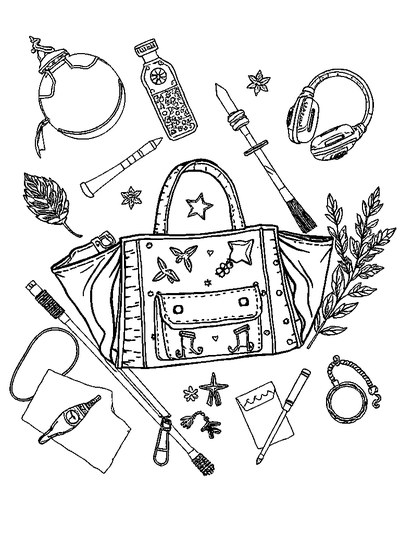
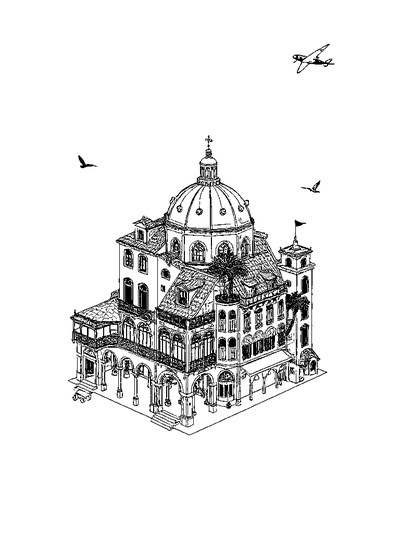
Every thumbnail is a real page from the ColorDood library. Open one to download the PNG or print a PDF — no signup.
Frequently asked questions
Can I import a printable PDF directly into ColorDood?
No. ColorDood does not include a direct import button for arbitrary PDF or image files. ColorDood's library is curated and scholar-guided. To color your own picture, use Color an image, which extracts clean ink lines from a photo on your device.
What is the fastest paper-to-screen bridge?
Print a few sheets from colordood.com/free-pdfs for a table session, then color the rest digitally in ColorDood when you want no paper or ink. For a custom picture, use Color an image on a photo and color it freehand.
How do I get finished digital art back onto paper?
Save the piece to My Gallery, open it, and use the Save screen to export as PDF for print or image for sharing. Print at 100% scale on A4 or US Letter. Exports carry a Made with ColorDood watermark; gallery copies do not.
Does ColorDood need an account or internet for these workflows?
No. ColorDood needs no login, and the gallery stays on your device. Core coloring works offline. Sound tracks should be tested in airplane mode on your device after first use.
What stats describe the ColorDood toolset in 2026?
ColorDood offers 1000+ scholar-guided pages, 11 tools, 10 palettes, zoom from 1x to 6x, up to 12 undo steps, and a gallery that holds up to 60 items. These numbers were current as of November 2026.
Ready to play a free coloring game?
Download ColorDood — free AI adult coloring book and coloring game with 250+ free pages (4,500+ with Premium), 50+ color palettes, PDF & HD exports (Premium), and no login required.
