
Guides
Advanced Zoom and Detail Coloring Techniques in ColorDood
ColorDood zooms from 1x to 6x. This guide shows how to pair zoom with brush size, boundary mode, and a mandala routine so tiny shapes stay tidy without losing the whole page.
Updated November 20, 2026 · 9 min read · 1,351 words
**To color tiny spaces in ColorDood, zoom to 2x–3x, drop the brush to 4–10, and keep Inside mode on.** Then pan with the Hand tool and use Fit screen to step back. Zoom is not a magnifying glass you leave on; it is a tool you move in and out of, like a photographer changing lenses.
Dense mandalas, small petals, narrow leaf tips, and geometric tiles are hard to color at normal size. Zoom solves most of that, but it does not replace a steady hand. This guide focuses on controlling the view and the brush together, and on the habits that keep a detailed page from drifting.
How zoom works on the canvas
Place two fingers on the canvas and pinch to zoom. The range is 1x to 6x. You can also use the zoom buttons. The + and − buttons change the zoom in steps of about 1.4x, which is useful when you want a steady, even change rather than a pinch that can overshoot.
- **Pinch:** free zoom between 1x and 6x
- **+ and − buttons:** steady steps of about 1.4x
- **Hand tool:** pan with one finger while zoomed in
- **Fit screen:** returns the view to the whole page
The zoom ladder: when to use each level
| Zoom | Use for | Brush size |
|---|---|---|
| 1x | Overall balance, big fills, background | 20–60 |
| 2x–3x | Most detail work, petals, leaves | 8–20 |
| 4x | Small shapes, geometric cells | 4–10 |
| 5x–6x | Very small corners only | 4–6 |
Pair zoom with brush size
The brush size slider runs from 4 to 60. Zoom and brush size work together. At 1x, a brush of 20 may be fine for a big petal. At 4x, the same brush covers a lot of a small space, so drop it down. A good starting point for tight areas is somewhere in the 4 to 10 range, then adjust while you watch the stroke.
- Zoom to the area you want, usually 2x to 3x for most detail
- Lower the brush size until the stroke fits the gap
- Paint one short stroke and look at it
- Adjust brush size or zoom before you continue
Use Inside mode for small regions
Inside is the default boundary mode. It clips brush strokes to the enclosed shape where your touch starts. That matters in small spaces, because a slightly wide stroke will stop at the line instead of spilling into the next petal. Free mode paints anywhere, which is useful for shading across a larger area but easy to misuse in tight spots.
For a very small shape, Fill is often faster than brushing. Fill fills the full enclosed region on a tap, so one tap can cover a tiny leaf that would take many careful strokes. Use Brush for edges and shading, and Fill for the solid parts.
Panning without losing your place
Pan by moving two fingers, or turn on the Hand tool and drag with one finger. The Hand tool is handy when you are working in a small corner and want to slide to the next petal without losing your place. When you return to 1x, Hand mode turns off on its own, so you are back to normal painting.
If you find yourself zoomed in and unsure where you are, tap Fit screen. That resets the view. Then zoom back in on the exact area you want to paint. Fit screen is also the right move when you want to check overall balance.
A routine for dense mandala areas
Mandalas have many small repeating shapes. A routine keeps you from wandering. Work one ring at a time, not the whole page at once. Start at the center, then move outward so your hand is not crossing finished areas.
- Fit screen, then pick the ring you want to start with
- Zoom to 2x or 3x on that ring and pan with the Hand tool
- Use Fill for the solid shapes and a small brush for edges
- Check the ring at Fit screen before moving to the next
- Take a break if the shapes start to blur together
Working both sides of a shape
Some shapes are hard because they are small on one side and wide on the other. A petal tip is a good example. Start from the wide end at a lower zoom, then move to the tip at a higher zoom with a smaller brush. This keeps the big, easy strokes in place and saves the careful work for the narrow end.
When a shape has a line on every side, try Fill first, then go back with Brush at a higher zoom to tidy the edges. The fill gives you a solid base, and the brush cleans up any gap near the line. This order is often faster than trying to brush every inch at 4x.
When should I step back?
Step back when you cannot tell whether a color belongs in a shape, or when the page looks uneven from far away. Tap Fit screen and look at the whole picture. Small details often look different at a distance, and that is the moment to notice balance, not just precision.
If a stroke went wrong while zoomed in, undo can help. ColorDood keeps up to 12 undo steps, so a short run of mistakes is easy to reverse. For the full picture, see the undo and redo guide.
Common zoom mistakes and how to fix them
- **Too much zoom:** drop to 2x or 3x, and use Fit screen more often
- **Brush too wide:** lower the slider until the stroke sits inside the line
- **Lost your place:** tap Fit screen, then zoom back in on the exact spot
- **Hand mode still on:** return to 1x, which turns it off, then pan with two fingers if needed
- **Painting a whole session at 6x:** high zoom is for corners; it makes the rest of the page hard to judge
If an edge still spills, check that Inside mode is on in the tool dock. Inside mode keeps strokes inside the enclosed shape where your touch starts, which is the main protection for tight spaces.
Power-user habits for detail work
- Zoom in before you decide the mode, not after
- Keep the brush size slider and the boundary toggle in view
- Check one ring at Fit screen before starting the next
- Use Fill for solid parts, Brush for edges and shading
- Take a short break when shapes start to blur together
What this guide does not cover
This guide is about the canvas view and brush controls. It does not cover pen or stylus setup, screen sizes, or how your eyes and hands feel over a long session. Take breaks when you need them. Coloring is a hobby and not medical advice, and no one should push through strain or discomfort to finish a page.
If you want a small challenge, open a dense mandala page from Library, zoom to 3x, set the brush to 6, and color one ring. Then use Fit screen to see how it looks from across the room.
Free line art
Pages you can print from this guide
Every thumbnail is a real page from the ColorDood library. Open one to download the PNG or print a PDF — no signup.
Mandala Coloring Page Pattern 8
Byzantine Glass Smalti Mosaic Wall Texture with Gold Foil Pieces
Abstract Liquid Smoke Trails Floating in Weightless Space
Concentric Floral Mandala with 16 Symmetrical Petal Rings
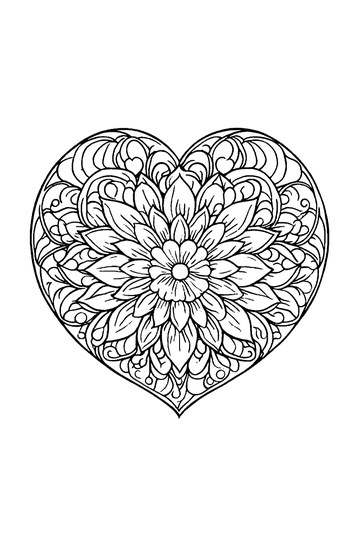
Heart-Shaped Mandala Coloring Page with Floral Designs
All Eight Moon Phases Arranged in Arching Vertical Sequence
Frequently asked questions
How far can I zoom in ColorDood?
The canvas zooms from 1x up to 6x with a two-finger pinch. You can also use the + and − buttons, which move in steps of about 1.4x.
What is the best zoom level for detail work?
Most detail work is comfortable at 2x to 3x. Reserve 5x to 6x for very small corners, and return to 1x often to check the whole page.
How do I pan while zoomed in?
Move two fingers, or turn on the Hand tool and drag with one finger. Hand mode turns off when you return to 1x.
Does zoom change the saved artwork?
No. Zoom changes what you see on the canvas while you paint. Your saved artwork is the page itself, not your current view.
What brush size works for tiny spaces?
A good starting point is 4 to 10 for tight areas, then adjust while watching the stroke. Drop the size as zoom increases.
Ready to play a free coloring game?
Download ColorDood — free AI adult coloring book and coloring game with 250+ free pages (4,500+ with Premium), 50+ color palettes, PDF & HD exports (Premium), and no login required.
