Adult coloring
Coloring With a Friend or Partner on One Phone
ColorDood is a single-user app on one device, with no multiplayer and no accounts. This guide shows how two people can take turns on one phone, agree on settings, and share the finished page.
Updated November 30, 2026 · 7 min read
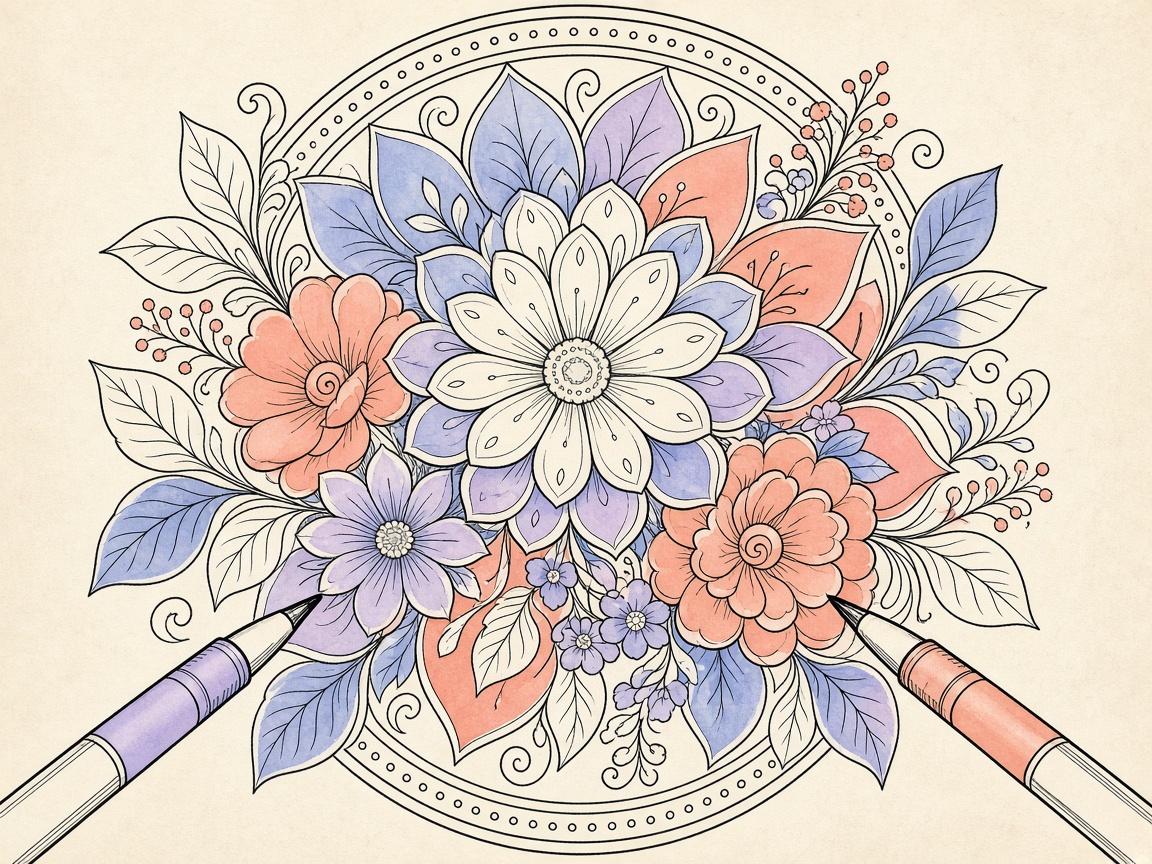
To color with a friend or partner on one phone, take turns on the same page, agree on the palette and boundary mode before you start, and use the gallery to keep the finished work. ColorDood is a single-user app on one device. It has no multiplayer mode and no accounts. Two people can share the screen, but only one person paints at a time.
This guide explains how to make a shared session pleasant, how to split the page, and how to share the result afterward. It also covers what the app does not do, so you know what to expect before you start.
What ColorDood does and does not do together
ColorDood works on one device, and the work you do is stored on that device. Two people can sit together and take turns, but the app does not send strokes to another phone or show a second person’s cursor. There is no shared canvas that two devices edit at once. If you want that kind of experience, you will need to look for it elsewhere. This guide does not compare other apps.
The app is free to download on iOS and Android, and it has no accounts. Your data stays on the device. Portrait orientation is the only mode, so both of you hold the phone the same way.
Take turns on sections
The simplest way to color together is to split the page into sections. One person can take the top half, and the other can take the bottom. Or one person can color the large areas while the other handles the small detailed spaces. Agree on the split before you start, and say when you are passing the phone.
Turn-taking works best when each person has a clear section. If you both want to color the same area, decide on a rule, such as the person who started the area finishes it. Keep the rule friendly and short.
Agree on palette and boundary mode
Before you start, choose one palette. ColorDood offers 10 styles: Vibrant, Pastel, Earthy, Neon, Jewel, Ocean, Candy, Sunset, Forest, and Space. Change it with the Palette button in the tool dock, or in Settings > Change palette. Using one palette keeps your page balanced, even when two people are adding color.
The boundary control is in the tool dock too. Inside is the default, and it clips strokes to the enclosed shape where the touch starts. Free paints anywhere. Agree on which one to use before you begin. Inside keeps the page neat for both of you, and Free is better for big backgrounds that you both agree on.
- Choose one palette for the page
- Agree on Inside or Free for the boundary mode
- Decide who takes which section
- Agree on how to pass the phone
Keep the phone passing smoothly
Passing a phone can feel awkward if you do it in the middle of a stroke. Set a rhythm, such as switching every few minutes or after each section. Ask the other person before you change the tool or the palette, because those settings affect the whole page. Undo is available for up to 12 steps, but it is kinder to avoid undoing the other person’s work without asking first.
Give each other space. If one person is much faster, the slower one can take a detail section or a background. There is no score, so the goal is a finished page you both like.
Use the gallery to keep the page
When you leave the canvas after painting, ColorDood saves your work to the gallery automatically. The gallery can hold up to 60 items, so you may want to delete old practice pages when you are close to the limit. Tap a gallery item to keep editing it, or delete it individually. Gallery copies are not watermarked, so they are the best version to keep on your device.
If you want to keep a copy from a specific stage, use Save another copy to gallery from the save screen before you start a new section. That gives you a record of how the page changed.
Share the finished result
The save screen offers Save as image, Save as PDF, Download video, and Share. Image and PDF exports are watermarked with the app icon and the words Made with ColorDood. Download video saves a watermarked MP4 to Photos on demand. Share sends your chosen export through the device’s sharing options. Check the watermark before sending if you want a clean copy, and use the gallery copy for your own records.
- Finish the page together, and look at it at Fit screen
- Open the save screen from the canvas
- Choose Save as image, Save as PDF, or Download video
- Use Share to send the export to your friend or partner
Etiquette tips for shared coloring
A shared phone works best with a few simple habits. Ask before you change anything that affects the whole page. Keep the sound choice in Settings > Sound agreed between you. If one person is not enjoying the session, stop and try another page next time. The aim is a relaxed evening, not a finished page at any cost.
Set up before you sit down
Before you start, open the Library together and choose a page. The Daily Calm page at the top is a simple shared choice because it is already featured. If you prefer to browse, open the Swipe deck and take turns. Swipe left to skip and right or tap to color. Skipped pages are not kept, so you can both keep looking until one feels right.
Once you have a page, check the tool dock together. Confirm the palette, confirm whether you are using Inside or Free, and find the Hand tool for zooming in on tight areas. A few minutes of agreement now means fewer interruptions later.
Pace a shared session
Shared sessions go more smoothly when the pace is set on purpose. Some people work on one section each and swap when a section is done. Others pass the phone every few minutes so both people stay involved. Neither approach is better. Notice how you both feel after a few minutes, and adjust. If one person is waiting too long for a turn, shorten the turns or split the page into larger sections.
The gallery can hold up to 60 items. When you finish, keep the shared page there, and consider deleting older practice pages you no longer need. That leaves room for the next project you make together.
What this guide does not cover
ColorDood does not have multiplayer, live collaboration, shared canvases, or accounts. This guide does not describe any feature that is not in the app. It also makes no claims about relationships, communication, or mood. Coloring together is a shared activity, and that is all this guide promises. For anything about the app that is not covered here, check ColorDood itself.
This weekend, pick one page, agree on a palette, split the sections, and take turns for ten minutes. Then save the page to the gallery and share the finished image if you both want it.
Frequently asked questions
Can two people color together in ColorDood at the same time?
No. ColorDood is a single-user app on one device. There is no multiplayer mode, so two people take turns on the same phone or tablet.
Do I need accounts to share a page?
No. ColorDood does not use accounts, and your data stays on the device. Sharing is done by exporting a finished copy and sending it from your phone.
How do we share a finished page?
Open the save screen and choose Save as image, Save as PDF, Download video, or Share. Image and PDF exports include a watermark. Gallery copies are not watermarked.
Can we each have our own palette?
The palette is a single setting for the app, changed with the Palette button in the tool dock or in Settings > Change palette. Agree on one palette for the page before you start.
Ready to play a free coloring game?
Download ColorDood — free AI adult coloring book and coloring game with 1000+ pages, 11 tools, calming sounds, and no login required.