Adult coloring
Adult Coloring for Beginners: Your First Week
Adult coloring for beginners comes down to a few steps: pick a page with clear shapes, fill the large areas, color the smaller ones carefully, and save what you make. This guide walks through a simple first week in ColorDood.
Updated November 22, 2026 · 7 min read
Adult coloring for beginners comes down to a few simple moves. Choose a page with clear shapes, fill the large areas, color the smaller parts with care, and save what you make. In ColorDood, a first week can be a short, calm run through the Library, a handful of tools, and one habit that matters most: leave the canvas after you paint so your work is saved.
This guide is a practical first-week plan. It covers what to try each day, the frustrations that new colorers often run into, and what you should not expect yet. It is a hobby guide, not a lesson plan, and it makes no claims about skills, health, or results.
Day one: pick an easy page
You need very little to begin. Install the app, open it, and go to the Library tab. You do not need a second device, a printer, or any supplies. ColorDood runs in portrait mode only, so hold your phone upright and leave it that way.
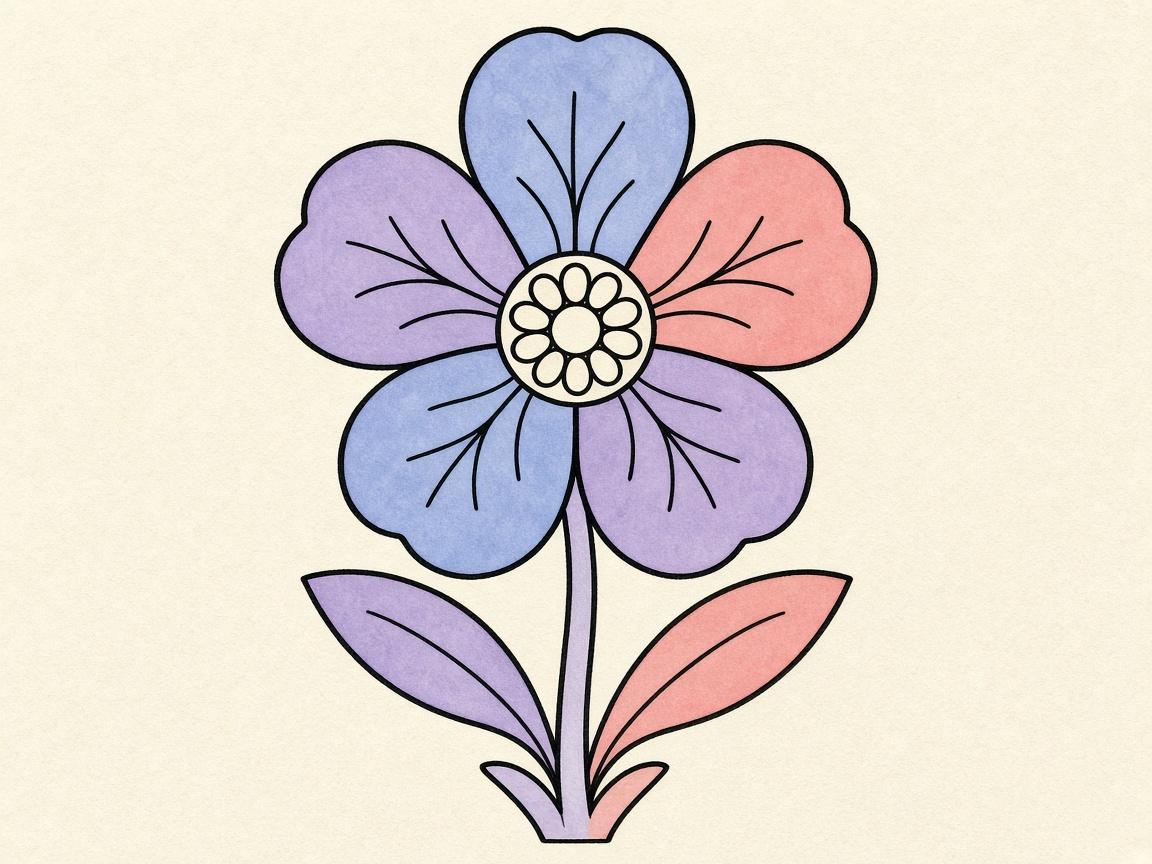
Your first page matters more than any tool. Choose one with large, open shapes, such as a single flower, a piece of fruit, or a simple object like a teapot or a lamp. Leave dense mandalas and busy scenes for later. They are not wrong to try, but they are harder to learn on.
There are three easy ways to find a page:
- Library: use the category strip (All, Patterns & Mandalas, Plants & Fruit, Vehicles, Home & Objects), or search by name or keyword.
- Daily Calm: the featured page at the top of the Library rotates by day, so you can start without choosing.
- Swipe: swipe left to skip and right, or tap, to color. The deck is shuffled and skipped pages are not saved, so keep moving until one looks easy.
Each Library tile shows a color count badge. Glance at it before you open a page. A small number is a friendly sign for a first session.
Day two: fill the big shapes first
Open the page, pick the Fill tool from the tool dock, and tap inside a large shape. Fill covers the full enclosed region on each tap, so it is the quickest way to get color onto the page. It also shows you how your colors look next to each other before you commit to smaller areas.
Choose a color with the Palette button in the tool dock. There are ten palette styles, including Vibrant, Pastel, and Earthy. If you are unsure, start with the Pastel palette. Soft colors are forgiving when you are still learning how the page looks.
Fill three or four large shapes and stop. You are not trying to finish the page yet. You are learning what each tool does.
Day three: use the Brush at Inside mode
When you want to color around a detail or a smaller area, switch to the Brush. Keep the boundary on Inside, which is the default. Inside clips your strokes to the enclosed shape where your touch starts, so a stroke that begins inside a petal stays inside that petal. The boundary toggle lives in the tool dock.
Free is the other setting. It paints anywhere, which can be handy for backgrounds, but it is easy to go over the lines by accident. For your first week, Inside is the safer choice.
Brush size runs from 4 to 60. Start in the middle of that range for big areas, and move to a smaller size only when you are near an edge. A steady, light stroke works better than a fast scribble.
Use undo without worry
Undo and redo sit in the canvas header and go back up to 12 steps. Use them freely. If a stroke goes past a line, undo it and try again. Many beginners stop after one mistake, but a mistake is one tap away from being fixed.
A useful habit is to test a new color or a new tool on a small area first. If it does not look right, undo before you spread it across the rest of the page.
Day four: save a copy and leave the canvas
The gallery saves your work automatically when you leave the canvas after painting. Tap a gallery item to keep editing it. The gallery holds up to 60 items, so delete any you no longer need. Each item can be removed on its own.
When you want to keep a version or share it, open the Save screen. You can save another copy to the gallery, save as an image, save as a PDF, download a video, or share. Image and PDF exports carry a watermark with the app icon and the words “Made with ColorDood.” Gallery copies are not watermarked.
The 10-drawing milestone
Every 10 drawings unlocks a free pack of 5 locked pages. Reaching that first milestone is a good goal for your first couple of weeks, but it is not a deadline. Keep it in the back of your mind and let it come naturally.
The streak counter is local to your phone. It goes up by one for each local calendar day when you leave the canvas after at least one stroke. Opening the app alone does not count. If you miss a day, the app may offer an optional Premium save. You can decline it, and the streak resets. Missing two or more days resets it. None of this affects your artwork.
Common first-week frustrations
- Color spills past the line: check that the boundary is set to Inside, then undo the stroke and try again.
- Fill spreads into a neighboring area: the outline may have a small gap. Undo the fill, then use the Brush at Inside for that part.
- The page looks crowded: switch to a page with fewer, larger shapes.
- Colors clash: try the Pastel or Earthy palette, or test your colors on a small area before you fill a big one.
- I cannot find my work: leave the canvas after painting, then check the Gallery tab.
Most first-week problems are small, and each one has an easy fix. The app’s undo, the Inside boundary, and the gallery cover most of them.
A first-week checklist
- Pick one page with large, open shapes
- Fill three or four big areas using the Fill tool
- Switch to the Brush and keep the boundary on Inside
- Test a new color on a small area before you commit
- Use undo whenever a stroke goes wrong
- Leave the canvas after painting so the gallery saves your work
- Stop when you are done, even if the page is not finished
What beginners should not expect
You do not need to finish a page in one sitting, and you do not need to color neatly on your first try. Your early pages may look uneven. Some colors will surprise you, and a few pages will stay half done. That is part of the hobby.
Adult coloring is a leisure activity. It is not a skill test, and ColorDood does not promise any learning outcome or change in ability. Enjoy the process, and treat each page as a finished page, whatever its state.
What this guide does not cover
This guide covers the basic steps for a first week in ColorDood. It does not walk through every tool setting, every palette, or every detail of the Premium screen. For a list of what the optional Premium upgrade includes, check the Premium screen inside the app. If a setting you read about here looks different on your device, the app itself is the most current source.
This guide also makes no health, relaxation, or wellbeing claims. If you have a concern about your health or wellbeing, please talk to a qualified professional.
Tonight, open the Library, pick one page with large shapes, fill three of them, and leave the canvas so your work is saved. That is a complete first session.
Frequently asked questions
What is the easiest way for a beginner to start adult coloring?
Pick a page with large, open shapes, such as a single flower or a simple object. Fill a few of those shapes with the Fill tool, then move on to the Brush once you feel comfortable.
What should I do if my color goes outside the lines?
Undo the stroke and check that the boundary is set to Inside in the tool dock. Inside clips your strokes to the shape where your touch starts, which keeps most color where you want it.
How do I make sure my work is saved?
The gallery auto-saves when you leave the canvas after painting. Tap a gallery item to keep editing. Gallery copies are not watermarked, and the gallery holds up to 60 items.
Do I need an account to start?
No. ColorDood has no accounts, and your data stays on your device. The app is free to download on iOS and Android.
Ready to play a free coloring game?
Download ColorDood — free AI adult coloring book and coloring game with 1000+ pages, 11 tools, calming sounds, and no login required.