
Guides
Smudge and Blend Digital Coloring Techniques
Smudge blurs color already on the canvas so two shades blend. This guide shows how to use Smudge, Marker, Spray, and Watercolor together for soft edges and depth without muddying a page.
Updated November 20, 2026 · 10 min read · 1,734 words
**Smudge and blend** techniques are how you make hard edges soft in digital coloring. In ColorDood, Smudge blurs color already on the canvas so two shades merge. This guide shows how to use Smudge, Marker, Spray, and Watercolor together for soft edges, gentle gradients, and depth, without muddying a page. It is written by the ColorDood Editors and reviewed against the app build current as of November 20, 2026.
The short answer is this: paint two colors next to each other, then smudge lightly along the boundary. Use Marker for depth, Spray for fades, and Watercolor for washes. Keep strokes short and gentle, and undo if the result turns muddy. ColorDood is a free coloring app for iOS and Android, and nothing here is medical advice.
What does the Smudge tool actually do?
Smudge blurs the color that is already on the canvas. It does not add new color; it moves and softens what is there. It is meant for softening edges and blending two neighboring shades. Use it lightly, since heavy smudging can make a page look muddy and flat.
Smudge works on whatever color sits under your finger. If two colors meet at an edge, a short smudge stroke pulls a little of each into the other and creates a soft transition. If only one color is under your finger, Smudge simply softens and spreads that color.
Stroke length and pressure
Short strokes give you control. A long drag can pull color across a large area and erase the shape you were trying to keep. Gentle, repeated taps or short flicks work better than one long sweep. If a stroke goes too far, undo it and try a shorter one. Undo keeps up to 12 steps, so experimenting is cheap.
| Smudge use | Stroke style | Risk if overdone |
|---|---|---|
| Softening a hard edge | Short taps along the edge | Edge disappears entirely |
| Blending two colors | Short flicks across the boundary | Colors turn muddy |
| Spreading a highlight | Light taps in one direction | Shape loses definition |
| Fixing a harsh line | Gentle strokes over the line | Page looks flat |
How do you blend two colors with Smudge?
Paint both colors next to each other with Brush or Fill, leaving a clear boundary between them. Switch to Smudge and stroke along the boundary where they meet. Short, gentle strokes work best. If the result turns muddy, undo and try a lighter touch or a smaller brush size.
The colors matter. Two colors that are close on the color wheel blend into a smooth transition. Colors that are far apart can create a dull middle. If the middle looks dull, try a third color between them, or leave a thin solid line of one color as a separator.
A simple two-color blend
- Fill the left half of a shape with color A.
- Fill the right half with color B.
- Switch to Smudge and use short strokes along the middle.
- Undo if the blend goes muddy, then try lighter strokes.
- Stop when the transition reads as soft, not flat.
How does Marker build depth?
Marker is semi-transparent and uses a multiply blend, so layers get darker where they overlap. Use it to build depth: a second pass over a petal edge darkens the overlap and reads as shadow. It is the tool for adding dimension without leaving hard edges.
Marker rewards planning. Lay down a light base with Fill or Brush, then add Marker in the shadowed areas. Because the blend darkens, start light and add passes slowly. Undo is there if a pass goes too dark. Marker and Smudge work well together: Marker builds the shadow, Smudge softens its edge.
How does Spray soften and fade?
Spray paints airbrush-style dots and softens color into a wider area. Use it to fade a color into a background, to soften a hard edge, or to create a misty transition. Spray spreads color evenly, so it is good for wide, soft effects that Smudge cannot cover quickly.
Spray can look grainy up close and smooth from a distance. Check the result at Fit screen before you decide. Use a light pass and build up slowly; a heavy pass can look flat. Spray and Smudge are a natural pair: Spray lays down a soft field, Smudge shapes its edge.
How does Watercolor help with blending?
Watercolor paints soft, blurred dots that build up gently. It is the tool to reach for when you want a loose wash or a soft transition between two colors. It works best on larger areas, where the blur reads as a wash rather than a mistake.
For blending, paint two Watercolor strokes near each other and let them overlap slightly. The soft dots merge on their own, so you may not need Smudge at all. If you do smudge, keep it very light so you do not destroy the soft dot texture.
Which blending method should you use?
Each blending method suits a different situation. The table below maps a goal to a starting method. Test on a small area before you commit to a whole page.
| Goal | Method | Tool |
|---|---|---|
| Soft edge between two colors | Smudge lightly along the boundary | Smudge |
| Shadow on a petal | Layered dark passes | Marker |
| Fade into a background | Airbrush dots | Spray |
| Loose color wash | Overlapping soft dots | Watercolor |
| Smooth gradient | Named gradient preset | Gradient paint |
| Hue change along a line | Rainbow paint type | Brush + Rainbow |
How do boundary modes affect blending?
The boundary toggle in the dock sets how strokes behave. Inside is the default and clips strokes to the enclosed shape where your touch starts. Free lets you paint anywhere. For blending, Inside keeps a smudge inside a shape, which is useful for softening an edge without leaking into the neighbor. Free is better for a wash that spans the whole page.
Fill always fills the full enclosed region on tap, in either mode. The setting stays saved, so you do not need to change it each time. Switching modes mid-page is normal and costs nothing.
A floral blend workflow
Pick a flower page with several petals and a simple background. Use Fill on each petal with a base color. Add Marker along the inner edge of each petal where it overlaps the next, building a soft shadow. Smudge the shadow edge lightly so it blends into the base color.
For the background, use Watercolor with a large brush and loose strokes. If a stroke goes past the petals, leave it. Switch to Free mode for the background wash, then back to Inside for petal details. Finish with a light Spray pass where the petals meet the background, then a very light Smudge to soften the join.
A sky and cloud blend workflow
Pick a page with open sky. Use Watercolor for the sky, with one color near the top and a lighter one near the horizon. Let the strokes overlap so the soft dots merge. Add Spray for a misty fade between the two. If the transition is still hard, smudge lightly along the boundary.
For clouds, use Fill or Brush with a light color, then Smudge the edges outward so they fade into the sky. Keep the smudge short so the cloud keeps its shape. Undo any stroke that makes the cloud disappear into the background.
How do you fix a muddy blend?
A blend goes muddy when colors mix too far, when the stroke is too long, or when the colors are too far apart on the color wheel. Three fixes work. First, undo the last few strokes, since undo keeps up to 12 steps. Second, try a shorter Smudge stroke or a lighter shade. Third, if the area is small, switch that part to a solid color and leave the blend out.
- **Muddy middle**: undo, then try a third color between the two.
- **Lost edge**: undo, then use shorter strokes.
- **Flat result**: add a Marker layer for depth, then smudge lightly.
- **Grainy result**: check at Fit screen; Spray looks smoother from a distance.
Tips for consistent blending
- Work on one blend at a time so you can see the result.
- Keep a scrap area on the page for testing strokes.
- Use the Eyedropper to reuse a shade you already placed.
- Zoom in for the blend, then zoom out to check the whole page.
- Save a copy by leaving the canvas before a bold experiment.
Cross-cluster bridges worth knowing
Blending sits alongside other habits that make coloring smoother. For offline play on trips, see /blog/offline-games-for-android-no-wifi. To keep a record of a page, see /blog/colordood-timelapse-video-export. To make a page nobody else has, see /blog/color-a-photo-turn-picture-into-coloring-page and /blog/imagine-it-ai-coloring-page-generator. For plan details, see /pricing. For kids, see /blog/childrens-coloring-app. For tool basics, see /blog/digital-coloring-tools-brush-watercolor-pencil-guide.
Editorial note and sources
Reviewed by the ColorDood Editors on November 20, 2026. Tool behavior, undo limits, and boundary modes were verified against the app build current as of that date. Feature details can change with updates, so check your own version. Coloring is a hobby, and this guide makes no claims about mood, wellbeing, or learning.
- **Source**: ColorDood tool dock labels for Smudge, Marker, Spray, and Watercolor, verified November 2026.
- **Source**: ColorDood boundary mode documentation for Inside and Free.
- **Source**: ColorDood undo and gallery behavior, verified November 2026.
What this guide does not cover
This guide covers blending techniques inside the app. It does not cover color theory in depth, screen calibration, or how colors print on paper. A color that looks right on the phone may print differently, so test printing on a scrap sheet before a large run.
Free line art
Pages you can print from this guide
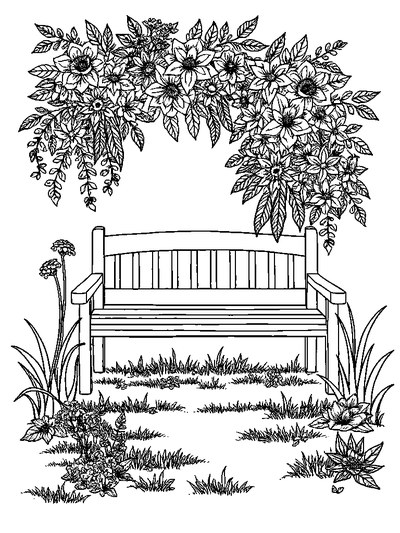
Every thumbnail is a real page from the ColorDood library. Open one to download the PNG or print a PDF — no signup.

Frequently asked questions
What does the Smudge tool do in ColorDood?
Smudge blurs the color that is already on the canvas. It is meant for softening edges and blending two neighboring shades. Use it lightly, since heavy smudging can make a page look muddy.
Is Smudge the same as an eraser?
No. Smudge moves and blurs existing color. Eraser paints white over color and does not remove strokes to a transparent layer. For a recent mistake, undo is usually the cleaner choice.
Can I blend two different colors with Smudge?
Yes. Paint both colors next to each other, then smudge along the boundary where they meet. Short, gentle strokes work best. If the result turns muddy, undo and try a lighter touch.
Which tools help with blending besides Smudge?
Marker uses a multiply blend to build depth, Spray softens color into a wider area, and Watercolor builds soft washes. Combining these with Smudge gives you several ways to blend.
How do I fix a muddy blend?
Undo the last few strokes, which keeps up to 12 steps, then try a shorter Smudge stroke or a lighter shade. If the area is small, switch that part to a solid color and leave the blend out.
Ready to play a free coloring game?
Download ColorDood — free AI adult coloring book and coloring game with 250+ free pages (4,500+ with Premium), 50+ color palettes, PDF & HD exports (Premium), and no login required.
