
Guides
Digital Coloring Tools: Brush, Watercolor, and Pencil Guide
ColorDood has 11 digital coloring tools, from Fill and Brush to Watercolor, Smudge, and Glitter. This guide explains what each tool does, when to use it, and how to combine them for clean, finished pages.
Updated November 20, 2026 · 11 min read · 2,580 words
**Digital coloring tools** are the brushes, fills, and effects you use to add color to a pre-drawn page on a phone or tablet. In ColorDood there are 11 of them, from Fill and Brush to Watercolor, Smudge, and Glitter. This guide explains what each tool really does, when to use it, and how to combine them so a page looks finished instead of patchy. It is written by the ColorDood Editors and reviewed against the app build current as of November 20, 2026.
The short answer is this: **Fill** colors big areas, **Brush** handles strokes and edges, and the other tools add texture, glow, softness, or correction. You can learn the basics in one session and add the rest as you go. ColorDood is a free coloring app for iOS and Android, with a Premium tier for more pages, palettes, and export. Nothing here is medical advice; coloring is a leisure activity.
What are digital coloring tools?
Digital coloring tools are the controls inside a coloring app that change how color appears on the page. Unlike paper and pencils, where pressure and paper texture do the work, a digital tool decides the stroke shape, opacity, and blend. In ColorDood the tools live in the dock at the bottom of the canvas. The color itself comes from your palette or the color wheel, and the tool decides how that color lands on the page.
ColorDood has 11 tools: Fill, Brush, Pencil, Marker, Watercolor, Neon, Glitter, Spray, Smudge, Eraser, and Eyedropper. The brush size slider runs from 4 to 60, the canvas zooms from 1x to 6x, and undo keeps up to 12 steps. Those numbers matter because they set the range of detail you can reach on a small screen.
Why tool choice matters on a phone
A phone screen is small, so a tool that is too large hides the shape you are coloring. A tool that is too small makes a simple area take forever. Choosing the right tool for the size of the area is the main skill in digital coloring. Zoom helps, but it cannot fix a tool that does not match the task.
The 11 tools at a glance
Here is what each tool does on the canvas. Descriptions are short so you can check them against your own page. ColorDood uses these names in the dock, so the labels should match your screen.
| Tool | What it does | Best for |
|---|---|---|
| Fill | Taps an enclosed region and fills the whole area with the current color | Large shapes like petals, leaves, and walls |
| Brush | Standard stroke; size slider 4 to 60 | Outlines, edges, and details |
| Pencil | Grainy texture | Shading and a sketchy look |
| Marker | Semi-transparent with a multiply blend; layers darken where they overlap | Building depth in flowers and skies |
| Watercolor | Soft, blurred dots that build up gently | Backgrounds and loose washes |
| Neon | Layered glow | A bright, lit-up accent on a single shape |
| Glitter | Adds colored flecks | Small highlights such as stars or jewelry |
| Spray | Airbrush-style dots | Softening color into a wider area |
| Smudge | Blurs color already on the canvas | Blending two neighboring shades |
| Eraser | Paints white | Correcting a small area |
| Eyedropper | Samples a color from the canvas, then switches to Brush | Reusing a shade you already placed |
How does the Brush tool work?
The Brush is the standard stroke tool. It draws a solid line whose width you set with the size slider, which runs from 4 to 60. Use it for outlines, edges, and any shape where you want a predictable, even color. It is the tool most people use most of the time, and it is the second item in the dock.
A small size, near the bottom of the range, suits thin lines and small shapes. A large size, near the top, suits backgrounds and broad strokes. If you are unsure, start around the middle of the range and adjust as you go. The stroke color comes from your current swatch or custom color, and the paint type can be Solid, Gradient, or Rainbow.
Brush size and zoom together
Zoom and brush size work as a pair. Zoom in with a two-finger pinch, up to 6x, when you need a thin line in a tight space. Use the plus and minus buttons for steady steps, then tap Fit screen to see the whole page. A medium brush at high zoom can draw a line that looks thin at normal size.
What does the Pencil tool add?
The Pencil paints with a grainy texture, closer to a colored pencil on paper. Use it when you want shading that looks drawn rather than filled, or when you want a sketchy, textured finish. It is a good choice for gradients of tone inside a single shape, such as the curve of a petal or the side of a building.
Because the texture shows, the Pencil rewards patience. Short, layered strokes build up a soft, uneven look that a flat Brush cannot produce. Use the Eyedropper to keep the shade consistent when you return to a shape after a break.
How does Watercolor behave?
Watercolor paints soft, blurred dots that build up gently. It is the tool to reach for when you want a loose wash, a background that does not look flat, or a soft transition between two colors. It works best on larger areas, where the blur reads as a wash rather than a mistake.
Watercolor can look muddy on tiny spaces, so keep small details for Brush or Pencil. On a background, use a large brush size and light, loose strokes, and let the color build in layers. Free boundary mode is useful for a wash that spans the whole page.
When is Marker the right choice?
Marker is semi-transparent and uses a multiply blend, so layers get darker where they overlap. Use it to build depth: a second pass over a petal edge darkens the overlap and reads as shadow. It is the tool for adding dimension without leaving hard edges.
Marker rewards planning. Lay down a light base with Fill or Brush, then add Marker in the shadowed areas. Because the blend darkens, start light and add passes slowly. Undo is there if a pass goes too dark.
What is Fill and when should you use it?
Fill taps an enclosed region and fills the whole area with the current color. It is the fastest way to color large shapes such as petals, leaves, and walls. Fill is first in the dock. It always fills the full enclosed region on tap, in either boundary mode.
If a fill covers more than expected, undo once and zoom in to check whether the outline has a gap. A small gap in the line lets the fill leak into a neighboring area. Close the gap with a quick Brush stroke, then fill again.
What do Spray, Smudge, and Eraser do?
Spray paints airbrush-style dots and softens color into a wider area. Smudge blurs color already on the canvas and blends two neighboring shades. Eraser paints white and does not remove strokes to a transparent layer. Each has a narrow, specific job.
- **Spray**: use it to soften a hard edge or fade a color into a background.
- **Smudge**: use it lightly to blend where two colors meet; heavy smudging makes a page muddy.
- **Eraser**: use it for a small patch; use undo for a recent mistake.
Smudge deserves the most care. It moves color where your finger moves, so short, gentle strokes work best. If a smudge goes wrong, undo it and try a shorter stroke. For a deeper look at blending, see the guide on smudge and blend techniques at /blog/smudge-and-blend-digital-coloring-techniques.
How do Neon and Glitter work as effects?
Neon paints a layered glow that looks bright and luminous, and Glitter adds colored flecks. Both are accent tools, not base tools. Neon works best for outlines, borders, and edges you want to stand out. Glitter works best in small, sparse spots such as the center of a flower or the tip of a petal.
Use both sparingly. A little goes a long way, and a page with too many effects looks busy. Color the large plain areas first, then add Neon or Glitter on top. For a full walkthrough, see /blog/how-to-use-glitter-neon-rainbow-coloring-effects.
What is Eyedropper for?
Eyedropper samples a color from the canvas and switches you back to Brush. Use it to reuse an exact shade you already placed, which keeps colors consistent across a page and across sessions. It is especially useful when you return to a page after a break and want to match a previous shade.
How do boundary modes Inside and Free work?
The boundary toggle in the dock sets how strokes behave. **Inside** is the default and clips strokes to the enclosed shape where your touch starts. **Free** lets you paint anywhere. Fill always fills the full enclosed region on tap, in either mode. The setting stays saved, so you do not need to change it each time.
Use Inside for clean shapes and for keeping glow effects inside a border. Use Free for backgrounds and washes that span the whole page. Switching modes mid-page is normal and costs nothing.
How to choose a tool by area
A useful way to pick a tool is to ask what the area needs. The table below maps common area types to a starting tool. Adjust based on your page and your taste.
| Area type | Start with | Then add |
|---|---|---|
| Large flat area | Fill | Marker for shadow |
| Thin outline | Brush at small size | Neon for glow |
| Soft background | Watercolor | Spray to soften |
| Shaded petal | Brush base | Marker layers |
| Blend of two colors | Brush both | Smudge lightly |
| Highlight or sparkle | Brush small | Glitter sparse |
A floral page workflow
Pick a flower page with several petals and a simple background. Start with the Pastel palette, which suits soft, light color. Use Fill on each petal so the base colors are even. Switch to Marker and go over the petal edges to add a darker tone where petals overlap; multiply blending makes this look natural.
For the background, use Watercolor with a large brush and loose, light strokes. If a stroke goes past the petals, leave it. Free mode is useful for a background wash that spans the whole page. Switch back to Inside for petal details. Use the Eyedropper to pick a petal color again when you add a shadow, so shades stay consistent. Finish with a light pass of Smudge where the petal meets the background, but use it sparingly.
A geometric page workflow
Pick a geometric or mandala page. Choose the Jewel palette, which gives deeper shades that read well on fine lines. Use Fill for each large segment, one color per shape, with Inside mode on so the fill stays where it belongs.
For thin lines and small accents, set the brush size low, near the bottom of the 4 to 60 range. Stay in Inside mode so strokes do not cross outlines. Add a few Glitter flecks to the center only if you like a sparkle effect. Use Eraser for a small patch if a color goes past a line, or undo if the mistake is recent.
How to combine tools without muddying a page
Most finished pages use only Fill, Brush, and one or two texture tools. Adding more tools does not make a page better; it makes it busier. A good rule is to choose a base tool, a shading tool, and one accent tool, then stop.
- Lay the base color with Fill or Brush.
- Add depth with Marker or Pencil.
- Soften one edge with Smudge or Spray.
- Add one accent with Neon or Glitter, if it suits the page.
- Zoom out and check the balance before adding anything else.
If a page starts to look muddy, undo the last few strokes and return to the base color. Undo keeps up to 12 steps, so experimenting is cheap. Save a copy by leaving the canvas before you try something bold on a page you care about.
Practical tips for every session
- Zoom in with a two-finger pinch when you need detail; zoom goes from 1x to 6x.
- Use the plus and minus buttons for steady zoom steps, then tap Fit screen to see the whole page.
- Test a color on a small area before you fill a large one.
- Use undo for recent changes; the canvas keeps up to 12 steps.
- Leave the canvas when you are finished so your page is saved to the Gallery.
Common mistakes and quick fixes
- **Color spills past a line**: check that boundary mode is Inside, then try again with a smaller brush.
- **Fill covers more than expected**: undo once, then zoom in to check whether the outline has a gap.
- **Colors look flat**: add a Marker layer over the first fill, or try a gradient from the palette.
- **The page looks muddy**: use Smudge lightly, or undo and switch to a lighter shade.
- **The Eraser left a white patch**: it paints white, so undo if the mistake is recent.
If a fix does not work, zoom in, check the boundary toggle, and try the same step on a small area first. Small tests save time and help you learn how each tool responds on your device.
Cross-cluster bridges worth knowing
Digital coloring tools work best when they sit alongside a few other habits. If you color on trips or in waiting rooms, the offline play guide at /blog/offline-games-for-android-no-wifi covers how to keep pages saved without a connection. If you want to keep a record of a page, the timelapse export guide at /blog/colordood-timelapse-video-export shows how to export a video of your strokes. If you want a page nobody else has, the AI generator at /blog/color-a-photo-turn-picture-into-coloring-page and /blog/imagine-it-ai-coloring-page-generator explain how to turn a photo or prompt into line art. If you are choosing a plan, /pricing lists what Premium adds. And if a child is coloring, /blog/childrens-coloring-app covers the kid-focused setup.
Editorial note and sources
Reviewed by the ColorDood Editors on November 20, 2026. Product facts such as tool names, dock order, the 4 to 60 brush size range, 1x to 6x zoom, and the 12-step undo history were verified against the app build current as of that date. Feature details can change with updates, so check your own version of the app if a label differs. ColorDood is a coloring app, not a medical or educational program, and nothing here claims health or learning outcomes.
- **Source**: ColorDood canvas tool dock and Settings labels, verified November 2026.
- **Source**: ColorDood palette and boundary mode documentation in the app.
- **Source**: ColorDood gallery and export behavior, verified November 2026.
What this guide does not cover
This guide describes what the tools do on the canvas. It does not promise a specific artistic result, and it does not teach drawing or color theory in depth. Results depend on your device, your pace, and the page you choose. It also does not compare ColorDood with other apps or claim that any tool is better than another.
Free line art
Pages you can print from this guide
Every thumbnail is a real page from the ColorDood library. Open one to download the PNG or print a PDF — no signup.
Terrarium Shelf — Cozy Doodle Style Coloring Page
Winter-themed Bookmark Illustrations with Pine Trees
City Cafe Exterior — Vintage Poster Style Coloring Page
Flowers Plant Petals Bloom Flora
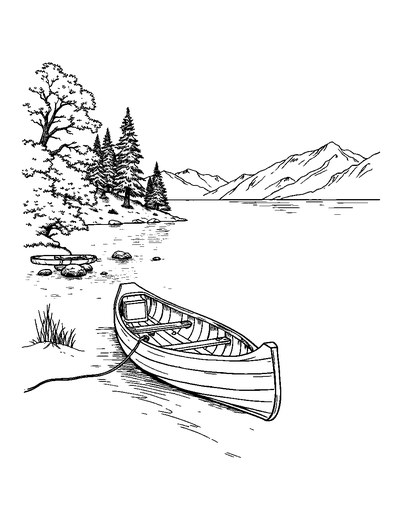
Tranquil Lake Shore with Wooden Canoe Tied to Rustic Dock
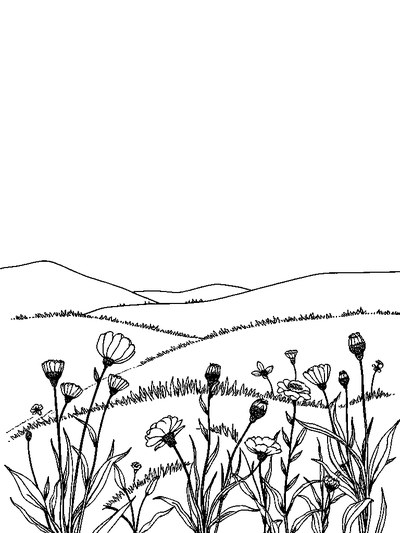
Sunset Meadow — Storybook Scene Without Characters Coloring Page
Frequently asked questions
What digital coloring tools does ColorDood include?
ColorDood includes 11 tools: Fill, Brush, Pencil, Marker, Watercolor, Neon, Glitter, Spray, Smudge, Eraser, and Eyedropper. They are available in the canvas tool dock, and the brush size slider runs from 4 to 60.
Which tool should a beginner use first?
Start with Fill for large areas and Brush for edges. Fill is first in the dock and Brush is second. Once those feel natural, add Marker or Watercolor for softer layers and shading.
Does Smudge remove the outline?
No. Smudge blurs color that is already on the canvas. It is meant for softening edges and blending two neighboring shades. Use it lightly, since heavy smudging can make a page look muddy.
Can I change the brush size for every tool?
The brush size slider runs from 4 to 60. Check the dock on your screen to see which tools use the size setting in your version. Small sizes suit thin lines; large sizes suit backgrounds.
How do I undo a mistake?
Use undo in the canvas header, which keeps up to 12 steps. Eraser paints white over color and does not remove strokes to a transparent layer, so undo is usually the cleaner choice for a recent mistake.
Ready to play a free coloring game?
Download ColorDood — free AI adult coloring book and coloring game with 250+ free pages (4,500+ with Premium), 50+ color palettes, PDF & HD exports (Premium), and no login required.
