
Guides
How to Save High-Quality Coloring Images for Sharing (2026)
To save a high-quality coloring image, finish your page, open the Save screen, choose Save as image, and send it through your device share sheet. The image stays sharp on screens and carries a small Made with ColorDood watermark.
Updated November 20, 2026 · 8 min read · 1,338 words
To **save a high-quality coloring image for sharing**, finish your page, leave the canvas so ColorDood stores it in your on-device Gallery, open the Save screen, and choose Save as image. Then use your device share sheet to save to Photos, Files, or send it straight to a message or social feed. The image stays sharp on screens and carries a small Made with ColorDood watermark.
ColorDood: Halal Coloring Game is a freehand coloring app for iPhone, iPad, and Android with 1,000+ scholar-guided pages and 11 tools. It keeps your Gallery on the device and works offline, so saving a high-quality image is something you can do anywhere the page is already stored. This 2026 guide covers when image beats PDF, how to keep quality high, where the file goes, and how to avoid the common mistakes that make a shared coloring image look soft or cropped.
Image vs PDF vs timelapse: when to use image
| Goal | Best format | Why |
|---|---|---|
| Send a finished page to family | Image | Opens instantly in any photo app |
| Post to a social feed | Image | Fast share, screen-sharp resolution |
| Print a sheet for pencils | Sharp lines at 100% on paper | |
| Share the process | Timelapse video | Shows strokes in order |
| Keep a private master | Gallery copy | Unwatermarked and editable |
Image wins on speed and reach. It is the format people open without thinking, because it behaves like any photo. PDF wins on paper. Timelapse wins on attention, because motion stops a scroll. For the full three-way comparison, see our pillar guide on exporting coloring pages as PDF, image, or timelapse.
Step-by-step: save an image for sharing
- Color a page as far as you want, or open a finished page from Gallery.
- Leave the canvas so ColorDood saves it to your on-device Gallery.
- Open the page from Gallery and tap the Save or share control.
- Choose Save as image.
- Use your device share sheet to save to Photos, Files, or send directly.
- Open the saved file to confirm it looks right before you send it.
Labels can shift between iOS and Android builds, and share sheets change with OS updates. Treat these steps as a map and confirm the wording on your own device. If Save as image is missing, update ColorDood and retry from Gallery.
Keeping image quality high
- **Finish before exporting:** a half-done page exports as a half-done image.
- **Zoom out to check:** view the whole page before you export, so nothing is cropped.
- **Avoid heavy compression:** save to Photos or Files rather than re-sending through a chat that compresses.
- **Use the Gallery master:** the Gallery copy is unwatermarked and editable if you need to re-export.
- **Mind the watermark:** the exported image carries the app icon and Made with ColorDood, which credits the tool.
- **Test one send:** send a sample to yourself first to check how your app handles the file.
The export itself is produced at a resolution that stays sharp on phone screens and most social feeds. If you need print-sized sharpness, switch to PDF, which scales cleanly to A4 or US Letter without softening. Image and PDF serve different jobs, and picking the right one is the difference between a crisp share and a blurry one.
Where the image goes and how to find it
Image exports are handed to your device share sheet, so you choose the destination: Photos, Files, Drive, or a direct message. On iOS, saving to Photos puts it in your recent items. On Android, saving to Files or Photos keeps it in your gallery app. Because ColorDood has no account and keeps your Gallery on the device, the export is the only copy that leaves the app, and only because you sent it.
- **Photos (iOS/Android):** easiest to find and re-share later.
- **Files:** good for organizing by project or date.
- **Drive/Cloud:** useful for sharing across devices you own.
- **Direct message:** fastest, but the chat app may compress the image.
- **Social feed:** post directly from the share sheet on most platforms.
Watermark and credit
Exported images carry a watermark with the ColorDood app icon and the words Made with ColorDood. It credits the tool and helps families find the app. The copy in your on-device Gallery is not watermarked, so your private master stays clean and editable. If you want an unmarked copy, keep the Gallery version. Do not crop or edit around the mark in ways that misrepresent where the art came from.
2026 context: stats and access
In 2026, ColorDood is a free download on the App Store and Google Play with a 4.9 rating across 95+ countries and roughly 1,300+ downloads logged on store listings. The free tier includes 250+ pages and core tools, while Premium at $4.99 per month or $49.99 per year unlocks the full 4,500+ page library, more palettes, and extra tools, with final pricing varying by region. Image export works on both tiers with no login. The app stays near 40 MB, so the Save screen and its export run on modest hardware and work offline once the page is on your device.
- **No login:** export without creating an account.
- **On-device Gallery:** up to 60 items, private and editable.
- **Offline:** save an image from a page already on your device.
- **Family-safe:** original art, no licensed characters.
- **Support:** [email protected] if you need help.
Cross-cluster bridges
Image sharing connects to the rest of the export family. For paper instead of a screen, see exporting a coloring page as PDF for printing. For a video of your process, see how to make a coloring timelapse video. For the full comparison of all three formats, see the pillar guide on exporting coloring pages as PDF, image, or timelapse. And if you want a printable coloring book built from phone pages, the guide on printable coloring books from your phone uses this same export path.
Troubleshooting image exports
- **Missing button:** update ColorDood, confirm the page saved to Gallery, retry from Save.
- **Image looks soft:** you may be viewing a compressed chat copy; re-export and save to Photos.
- **Cropped image:** zoom out and check the full page before exporting.
- **No Photos entry:** check photo library permission for ColorDood in device settings.
- **Low storage:** clear space and retry.
- **Wrong page:** reopen the correct page from Gallery and export again.
These checks cover the most common causes but do not guarantee a fix. If a problem persists, note your device model and OS version and contact ColorDood through the channel listed on its website. Share-sheet labels change with OS updates, so re-check on your own device.
If you want a quick share tonight, finish one page, save it as an image, and send it to someone who would smile at it. Keep the Gallery copy as your private master and you can always re-export later.
Free line art
Pages you can print from this guide
Every thumbnail is a real page from the ColorDood library. Open one to download the PNG or print a PDF — no signup.
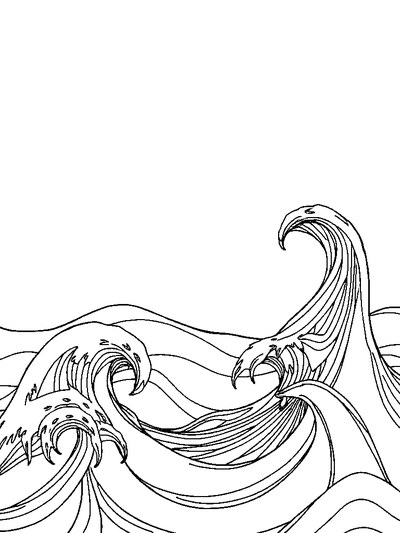
Checkerboard Waves — Repeat Pattern Coloring Page
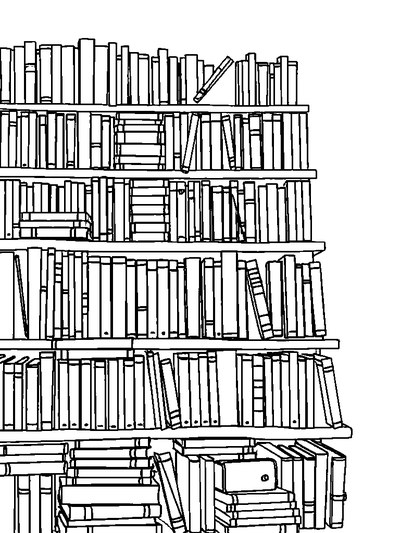
Bookstore Display — Repeat Pattern Coloring Page
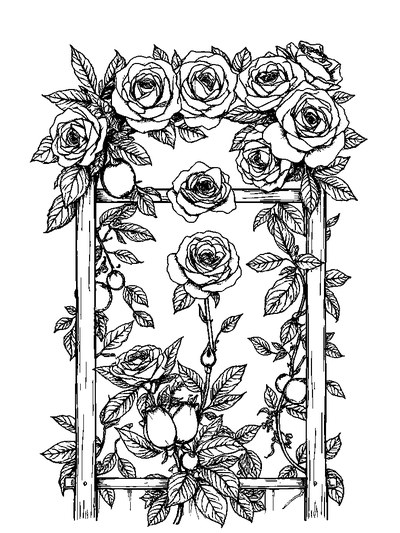
Rose Garden Trellis — Modern Minimalist Style Coloring Page
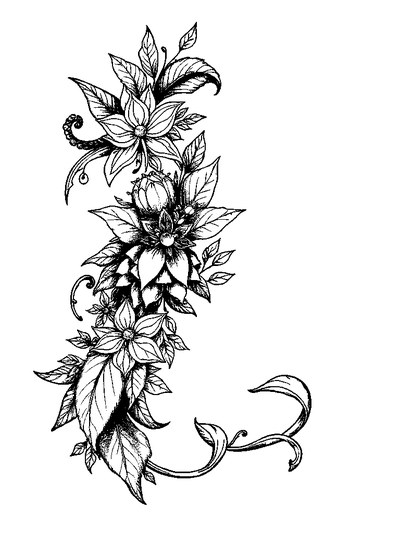
Decorative Letter L — Geometric Composition Coloring Page
Black and White Drawing of Two Apples on a Branch with Leaves
Handbag Contents — Cozy Doodle Style Coloring Page
Frequently asked questions
How do I save a high-quality coloring image from ColorDood?
Finish or pause your page, leave the canvas so it saves to Gallery, open the Save screen, and choose Save as image. Then use your device share sheet to save to Photos, Files, or send it directly.
What resolution are exported coloring images?
Exports are produced at a resolution that stays sharp on phone screens and most social feeds. For print-sized sharpness, use PDF instead, which scales cleanly to A4 or US Letter.
Do shared coloring images include a watermark?
Yes. Image exports carry the ColorDood app icon and the words Made with ColorDood. The copy in your on-device Gallery is not watermarked, so your private master stays clean.
Can I remove the watermark from a shared image?
The watermark is part of the exported file. If you want an unmarked copy, keep the Gallery version, which is never watermarked. Do not crop or edit around the mark in ways that misrepresent the source.
Does image export need an account or Premium?
No. The Save screen and image export work without a login on the free tier. Premium adds the full 4,500+ page library and extra tools but does not gate export.
Ready to play a free coloring game?
Download ColorDood — free AI adult coloring book and coloring game with 250+ free pages (4,500+ with Premium), 50+ color palettes, PDF & HD exports (Premium), and no login required.
