
Printables
From Paper to Screen: How to Import Your Favorite Printable Pages into ColorDood
Printables live on paper; ColorDood lives on screen. This guide explains the honest bridge between the two, plus how to turn your own photo into a coloring page and export finished art back to paper.
Updated December 2, 2026 · 8 min read · 1,201 words
If you have a printable coloring page you love, the honest answer is that ColorDood does not have a button to import an arbitrary PDF or image into the coloring canvas. ColorDood is built around its own scholar-guided library of 1000+ pages. You can still enjoy printables on paper, and you can color ColorDood's own pages on screen. If you want to color your own picture, use Color an image, which turns a photo into a coloring page on your device.
This guide explains that bridge honestly: what works on paper, what works on screen, how to move from a photo to a coloring page, and how to get finished digital art back onto paper when you want a printable.
What ColorDood does not do
ColorDood does not import third-party printable PDFs or images into its coloring canvas. There is no 'import file' step for outside line art. The library is curated and scholar-guided, so the pages you color on screen are the pages ColorDood ships.
That is a feature choice, not an oversight: it keeps the library consistent with the app's exclusions and its offline, no-login design. If import options are added later, this guide will be updated to match.
How to enjoy printables on paper
- Download a pack from colordood.com/free-pdfs — no account, no email gate
- Print at 100% scale on A4 or US Letter, portrait
- Use 65lb to 80lb cardstock if you plan to use markers or heavy colored pencils
- Set printer quality to Best or High so line weights stay crisp
- Color with your usual pencils, markers, or pens
Site packs are the fastest route to paper tonight. They come from the same scholar-guided library as the app, so the same subject rules apply: no animals, birds, Christmas, Halloween, or licensed characters.
How to color digitally in ColorDood
Open the Library and browse the category strip: All, Patterns and Mandalas, Plants and Fruit, Vehicles, Home and Objects, plus 99 Names. The Daily Calm page at the top rotates by day when you do not want to choose. You color freehand with 11 tools and 10 palettes, and leaving the canvas after painting saves the work to your on-device gallery.
Because the gallery holds up to 60 items, delete anything you no longer need before a big session. Gallery copies are not watermarked.
Turn your own photo into a coloring page
If what you really want is to color a specific picture — a building, a flower, a cup, a memory — use Color an image. Pick a photo from your gallery or camera, and ColorDood extracts clean ink lines on your device. There is no AI, no daily limit, and no internet connection required.
- Open the Color an image card
- Pick a photo from your gallery or camera
- ColorDood extracts clean ink lines in seconds
- Color the page freehand with 11 tools and 10 palettes
- Finished art auto-saves to your gallery
Color-image outlines save to a dedicated library, separate from the AI imagine library and your colored gallery. Tap See previous images on the Color an image card to reopen an outline. Photos with a clear subject and good contrast work best; very busy or low-contrast photos produce noisy line art.
Get finished digital art back onto paper
When you want a printable from something you colored in ColorDood, export it from the gallery. Choose PDF for print-ready sheets and sharper scaling, or image for quick sharing. Then print from your phone or computer at 100% scale.
- Save the finished page to My Gallery first
- Open the piece and tap share or export
- Choose PDF for print, or image for photos and messages
- Use the iOS or Android share sheet to Print, Save to Files, or Drive
- Preview on screen before spending color ink on a test page
Image and PDF exports carry a watermark; gallery copies are not watermarked. If export looks missing, update the app, confirm the artwork is in My Gallery, and retry.
A simple workflow that uses both
- Print a few sheets from /free-pdfs for a table session
- Color the rest digitally in ColorDood when you want no paper or ink
- Turn a favorite photo into a coloring page with Color an image
- Export finished art as PDF when you want a custom printable
- Keep sound off or use headphones in shared spaces
Related guides
For export steps, read how to export a PDF from ColorDood. For turning photos into pages, read color a photo turn picture into coloring page. For free printable packs, read free printable coloring pages and free coloring pages and coloring sheets. For adult-focused sheets, read adult coloring pages free printable PDF and free adult coloring sheets printable. For gallery details, read the ColorDood gallery guide. For 99 Names printables, read Asma ul Husna printable from ColorDood. For simpler pages, read easy printable coloring pages for adults.
What this guide does not cover
This guide does not claim a direct import feature that ColorDood does not have. It also does not cover every device, printer, or OS share-sheet layout. Exact labels can vary by iOS and Android version. ColorDood may add import options in a future update; this guide reflects the app as of the date above. [NEEDS REVIEW]
Free line art
Pages you can print from this guide
Every thumbnail is a real page from the ColorDood library. Open one to download the PNG or print a PDF — no signup.
Adult Coloring Page: Heart with Flowers
Abstract Drawing of Upside-Down Sphere with Grid Lines
Aesthetic Beach Towel Flat Lay with Shells, Book, and Sun Lotion

Ad-Darr — The Distresser
Aesthetic Glazed Fruit Tartlets Topped with Glossy Berries
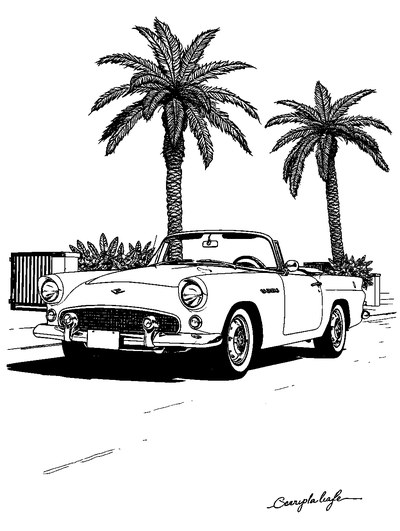
1950s Vintage Convertible Roadster Parked Beside Palm Promenade
Frequently asked questions
Can I import a printable PDF into ColorDood?
ColorDood does not include a direct import button for arbitrary PDF or image files. Color on paper with your printables, and color ColorDood's own scholar-guided pages on screen. To color your own picture, use Color an image, which turns a photo into a coloring page on your device.
How do I color a photo in ColorDood instead of importing a printable?
Open the Color an image card, pick a photo from your gallery or camera, and ColorDood extracts clean ink lines on your device. There is no AI, no daily limit, and no internet connection required. The result saves to your color image library and can be colored freehand.
Can I export my finished ColorDood art back to paper?
Yes. Finished art can be exported as image or PDF from the gallery share options, then printed at 100% scale on A4 or US Letter. Image and PDF exports carry a watermark; gallery copies are not watermarked.
Where can I get free printable coloring pages from ColorDood?
Browse colordood.com/free-pdfs for ready-made packs that download without an account, or export a page you colored in the app when you want a custom printable.
Is there a login or account needed for any of this?
No. ColorDood needs no login. Your gallery stays on your device, and site PDFs download directly without an email gate.
Ready to play a free coloring game?
Download ColorDood — free AI adult coloring book and coloring game with 250+ free pages (4,500+ with Premium), 50+ color palettes, PDF & HD exports (Premium), and no login required.
