Kids coloring
Fruit and Vegetable Coloring Pages: Easy Halal Subjects Kids Finish
Fruit and food pages give kids familiar shapes and a short finish time. Here is where to find them in ColorDood, and how to use Fill and Brush on large, simple outlines.
Updated November 12, 2026 · 7 min read
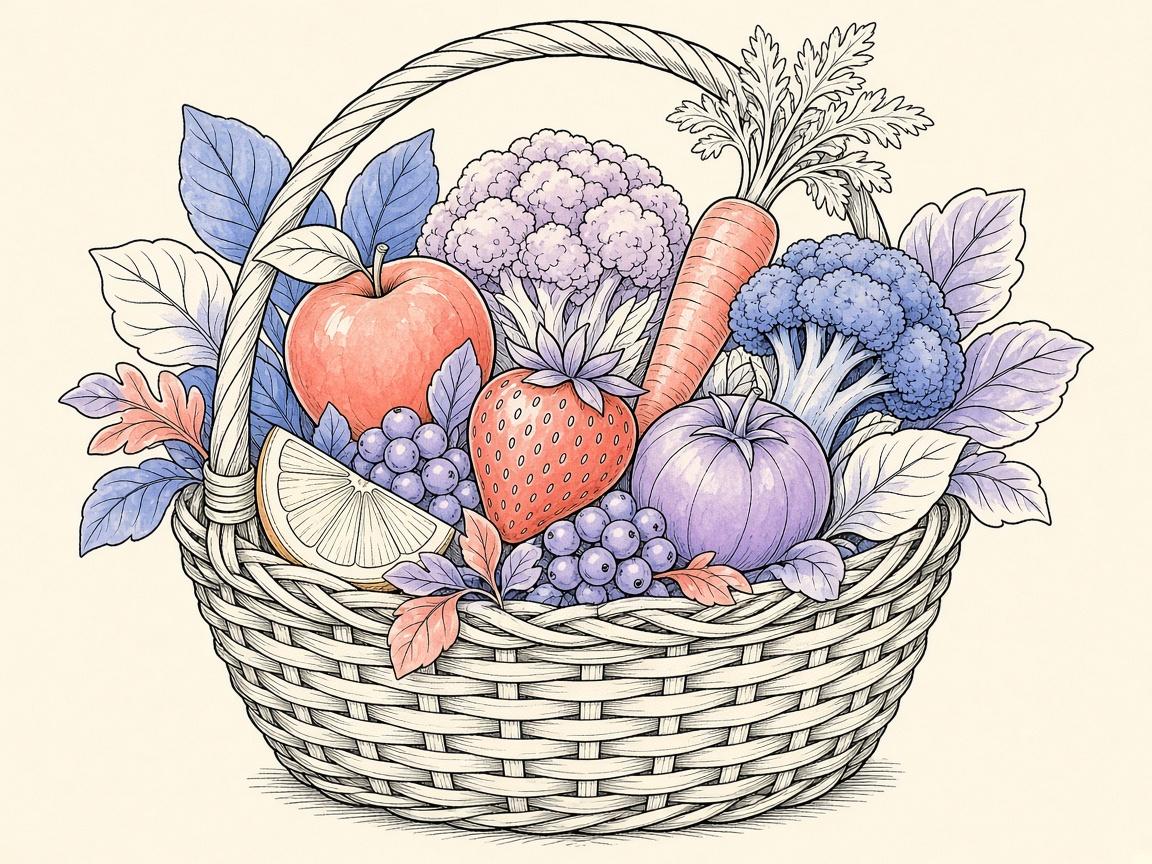
**Fruit coloring pages are one of the easiest places to start** with a child who is new to coloring. Apples, bananas, grapes, and strawberries have clear outlines and familiar shapes. Many kids can finish one in a single sitting. This guide explains why food subjects work well, where to find them in ColorDood, and how to use Fill and Brush on big, simple shapes.
ColorDood is a free coloring app for iOS and Android. Its page catalog follows a scholar-guided standard that covers objects, patterns, flowers, fruits, homes, and vehicles, and it leaves out animals and birds. That standard describes how the catalog is built. It is not a ruling for every household. If you have a personal question about what your family should color, ask a trusted scholar.
Why fruit works well for kids
Most children already know what a strawberry looks like. That matters. When a page shows a shape they recognize, they know what to reach for. They can pick red for the berry and green for the leaves without a long explanation.
Fruit pages also tend to have large, closed areas. A whole apple or a bunch of grapes gives a child a clear target. Small gaps and tiny parts are where frustration often starts. Simple outlines help a child reach the end of a page, and that can feel good on its own.
A short finish time has a practical value too. A child who completes a page sees the result quickly and can choose another one. That is a reason to start with food. It is not a promise about any particular skill.
Where to find fruit pages in ColorDood
Open the Library tab and tap the Plants & Fruit chip in the category strip. This group holds flowers, fruit, plants, and landscapes. It does not include insects or animals, so you will not see those mixed in with the food pages.
Vegetables are less clearly labeled. Search the Library by name or keyword within that category, and try words like fruit, bowl, basket, or plant. If a vegetable page does not show up, it is not in the built-in set right now. A fruit page or a plant page can work just as well for a quick session.
The Library holds 134 curated built-in pages across all categories. The Daily Calm page at the top rotates by day of the month. Some families like to open it together at the start of the day, then choose their own page after that.
Age tips for ages 3 to 5
Choose one or two shapes per session. A single big apple is plenty. Let the child pick the colors, and do not worry about staying perfectly inside the lines. The Brush slider goes up to 60, so use a large size to cover a shape quickly. Smaller children tend to enjoy seeing a page change fast.
Talk about the colors as you go. Ask what color a banana is, or whether a grape looks more purple or green. Keep sessions short. Stop while the child still wants to continue, and come back another day.
Age tips for ages 6 to 8
Older children can handle more detail. Try a bowl with several fruits and let them plan the palette before they start. Each palette has about 40 solid swatches, plus lighter and darker rows, so there is room to practice matching shades.
This is a good age to try a gradient. The Gradient paint type blends smoothly across a shape using one of the named presets in the palette. Encourage them to fill one piece at a time, then step back and check the whole page. If a color lands in the wrong place, tap Undo. Undo covers up to 12 steps.
A quick finish for adults
Many adults want a page they can finish in one sitting. Fruit pages suit that. Choose a bold palette, fill the big shapes with Fill, then add shading with the Marker or Watercolor tool. Palette names only hint at the mood, so pick one and see what you enjoy.
If you want a calmer finish, try a pastel palette and keep the strokes loose. The point is to finish a page in a short time, not to produce a perfect piece.
Using Fill and Brush on large shapes
Fill is first in the tool dock, and Brush is second. For a whole fruit, tap inside the shape with Fill. Fill always covers the full enclosed region on tap, so one touch can do most of the work on a simple outline.
Brush is for edges, shading, and anything Fill does not cover. Set the size with the slider. Larger sizes are faster on big areas. Smaller sizes help with the edge of a leaf or the stem of a cherry. If you want strokes to stay within one shape, check the Inside and Free boundary setting in the tool dock first.
A simple routine works well. Fill the largest shapes first. Then use the Brush for shadows and highlights. Finish with small details, such as seeds, stems, or a leaf vein. Keep the Undo button in mind as you go, so a mistake does not stop the session.
Printing a fruit page if you want one
Finished art can leave the phone. From the canvas Save screen, you can save a watermarked image or a PDF. Both exports carry the app icon and the words Made with ColorDood. Save as image sends a PNG to Photos. Save as PDF on Android goes to Downloads, and on iOS it opens the share sheet.
Gallery copies inside the app are not watermarked. Use the exports when you want to print or share a page outside the app. Print at home or at a shop, and check the page size before you print.
A short checklist
- Open Library and tap Plants & Fruit.
- Pick one or two large fruit pages for a short session.
- Choose a palette, or let the child pick the colors.
- Fill the big shapes first with Fill.
- Use Brush at a large size for shading, then smaller for edges.
- Use Undo for mistakes, up to 12 steps.
- Save or export only if you want to print or share.
What this does not cover
This guide does not cover every fruit or vegetable you might want. It does not promise that a child will learn a specific skill, and it does not replace advice from a teacher or a pediatric professional if you have concerns about a child’s development. Coloring is a pastime, not medical advice.
It also does not promise that a particular fruit or vegetable page exists in the app. The library can change, so search and look for yourself before you plan a session around one page.
Frequently asked questions
Where do I find fruit coloring pages in ColorDood?
Open the Library tab and tap the Plants & Fruit chip. You can also search by name or keyword within that category. The group includes flowers, fruit, plants, and landscapes.
Are there vegetable pages in ColorDood?
The Plants & Fruit group is labeled around fruit, plants, and flowers. Search the Library for vegetable words to see what is there today. If nothing matches, a fruit or plant page is a good substitute.
What is the quickest way to finish a fruit page?
Use Fill on each large shape, then add a few Brush strokes for shading. Keep the Brush at a large size for big areas and switch to a smaller size only for edges and small details.
Can I print a fruit page I colored?
Yes, from the canvas Save screen you can save a watermarked image or PDF. Both carry the app icon and the words Made with ColorDood. Android saves PDFs to Downloads, and iOS uses the share sheet.
Ready to play a free coloring game?
Download ColorDood — free AI adult coloring book and coloring game with 1000+ pages, 11 tools, calming sounds, and no login required.